Setting Up Backup
Protect your data with local and cloud backup options
Prerequisites
- Some data recorded in the app
In this series (5 parts)
Your vehicle data is valuable. This guide shows you how to protect it with backups.
Backup Options
My Cars offers several backup methods:
| Method | Subscription | Features |
|---|---|---|
| Local Backup | Free | Manual backup to device storage |
| Dropbox | PRO | Automatic cloud sync |
| Google Drive | PRO+ | Automatic cloud sync |
| OneDrive | PRO+ | Automatic cloud sync |
Local Backup (Free)
Create a backup file on your device:
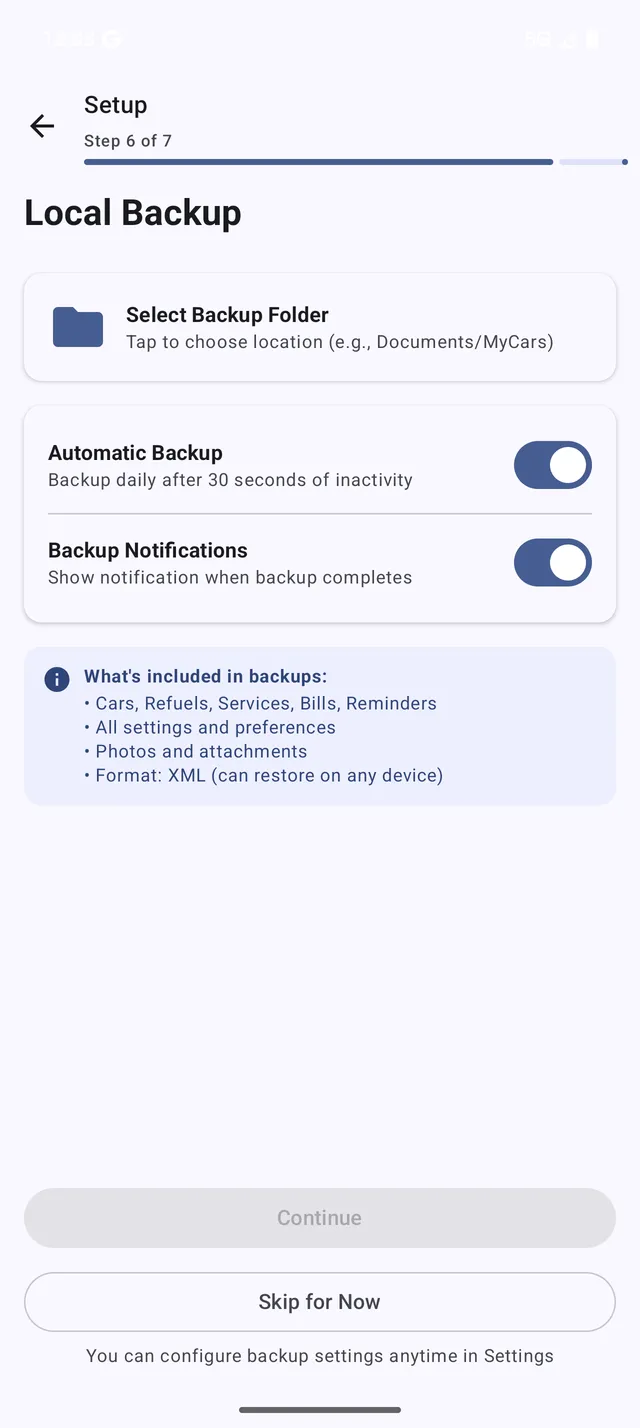 The backup screen lets you export and import your data
- Go to Menu > Backup & Restore
- Tap Create Backup
- Choose a location to save the file
- Tap Save
The backup file contains all your vehicles, refuels, services, bills, and settings.
Restoring from Local Backup
- Go to Menu > Backup & Restore
- Tap Restore Backup
- Select your backup file
- Confirm the restore
Warning: Restoring replaces your current data. Create a backup first if you have new data.
Best Practices for Local Backup
- Create backups regularly (weekly or monthly)
- Copy backup files to another device or cloud storage
- Keep multiple backup versions
- Test restoring occasionally
Cloud Backup (PRO/PRO+)
Cloud backup syncs automatically, keeping your data safe across devices.
Setting Up Cloud Backup
- Go to Menu > Backup & Restore
- Tap Cloud Backup
- Choose your provider:
- Dropbox (PRO and PRO+)
- Google Drive (PRO+ only)
- OneDrive (PRO+ only)
- Sign in to your cloud account
- Grant My Cars permission to access the folder
Cloud Backup Features
- Automatic Backup - Syncs after each change
- Restore on New Device - Sign in and restore instantly
- No File Management - Everything happens automatically
- Encrypted - Your data is secure
Switching Cloud Providers
To change providers:
- Go to cloud backup settings
- Tap Change Provider
- Select your new provider
- Sign in and authorize
Your data transfers to the new provider automatically.
Restoring on a New Phone
When you get a new phone:
- Install My Cars
- On the Welcome screen, tap Restore Data
- Choose Cloud or Local File
- Sign in (for cloud) or select your backup file
- Wait for the restore to complete
All your vehicles, history, and settings are restored.
Troubleshooting
Backup fails:
- Check your internet connection
- Ensure you have cloud storage space
- Try signing out and back in
Can’t find backup file:
- Check the default Downloads folder
- Search for files with “.mcb” extension
- Ensure you have storage permissions granted
Congratulations!
You’ve completed the Getting Started series. You now know how to:
- Add and manage vehicles
- Track refuels accurately
- Read your statistics
- Protect your data with backups
Explore the Feature Guides to learn more about specific capabilities.