Adding Your First Vehicle
Step-by-step guide to adding and configuring your first vehicle
Prerequisites
- My Cars app installed
In this series (5 parts)
Adding your first vehicle is quick and easy. The setup wizard guides you through the essential steps.
Initial Setup Wizard
When you first open My Cars, you’ll see a welcome screen:
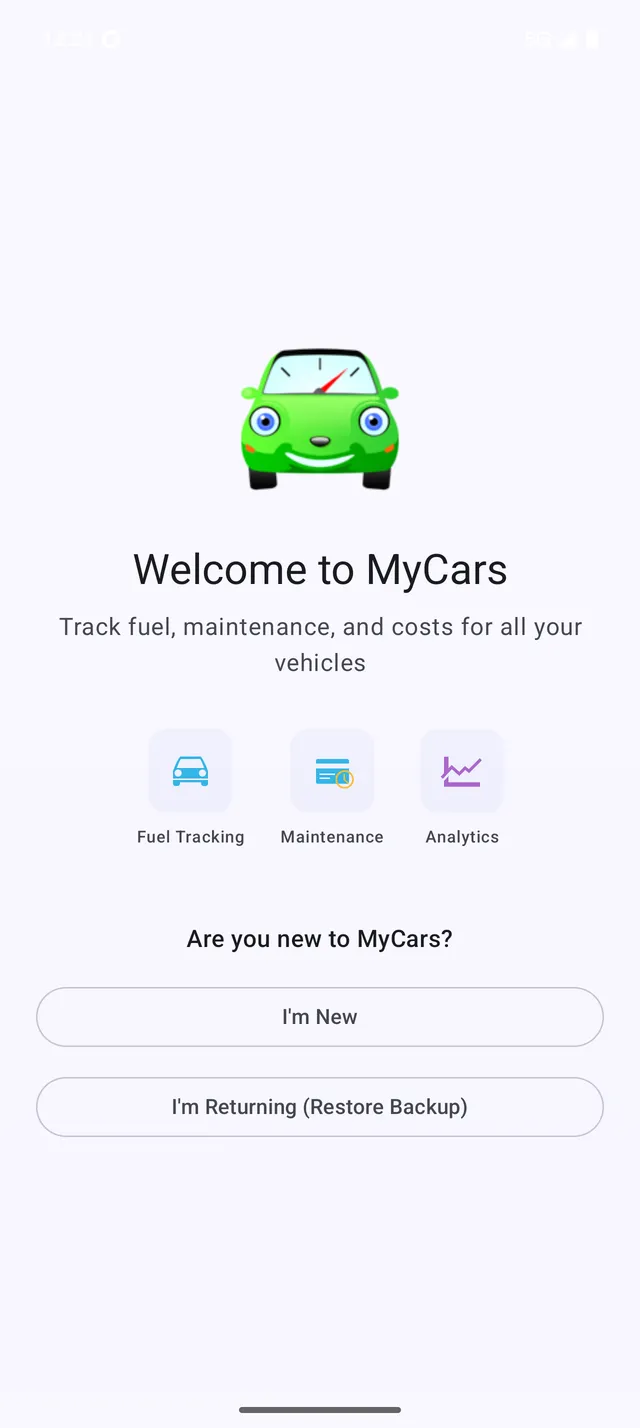 The welcome screen greets you when you first open the app
- Tap Get started
- Choose your preferred units:
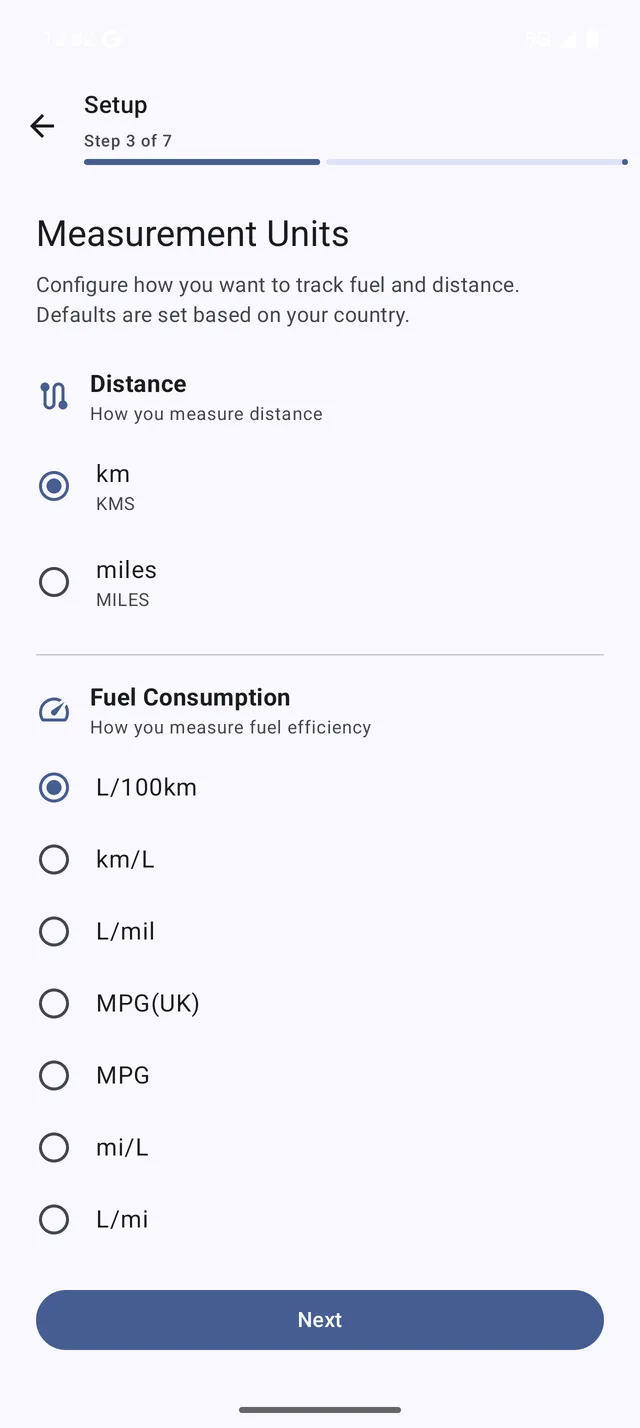 Select your preferred currency, distance, and fuel units
- Currency (USD, EUR, GBP, etc.)
- Distance (kilometers or miles)
- Fuel consumption (L/100km, MPG, km/L)
- Fuel quantity (liters or gallons)
- Enter a name for your vehicle (e.g., “Family Car”, “Honda Civic”)
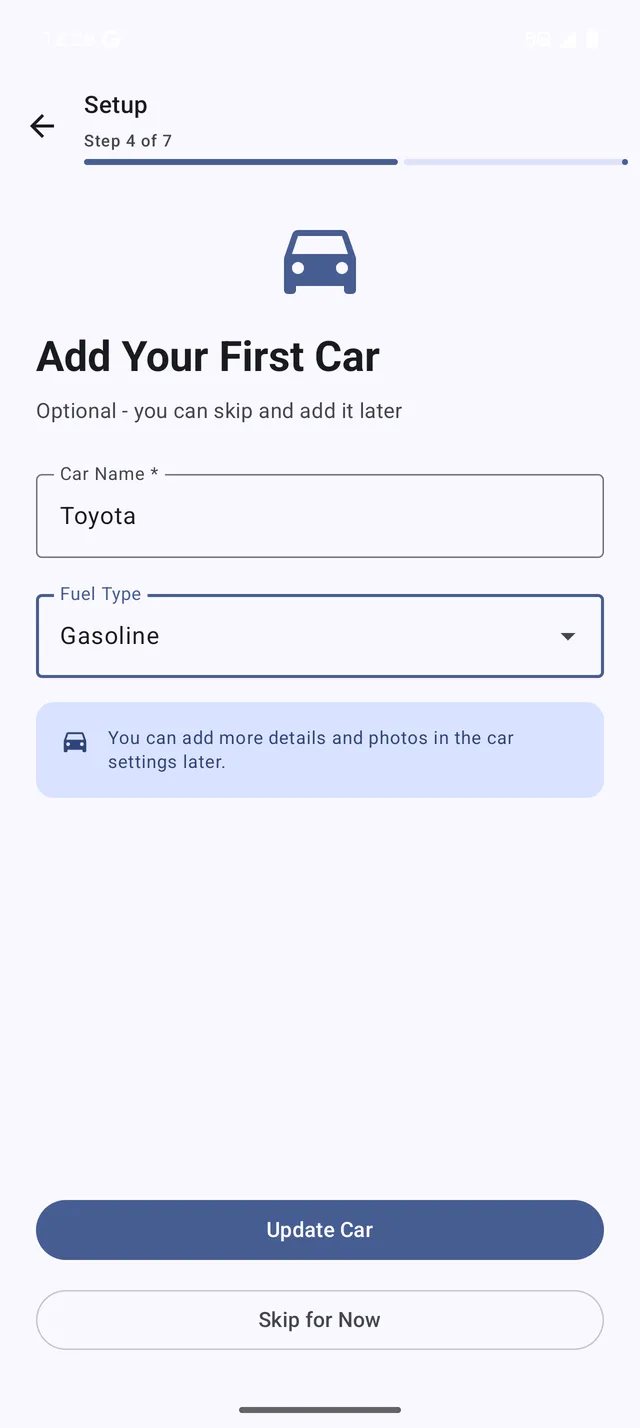 Give your vehicle a name to identify it
- Tap Add Car
That’s it! You can add more details later.
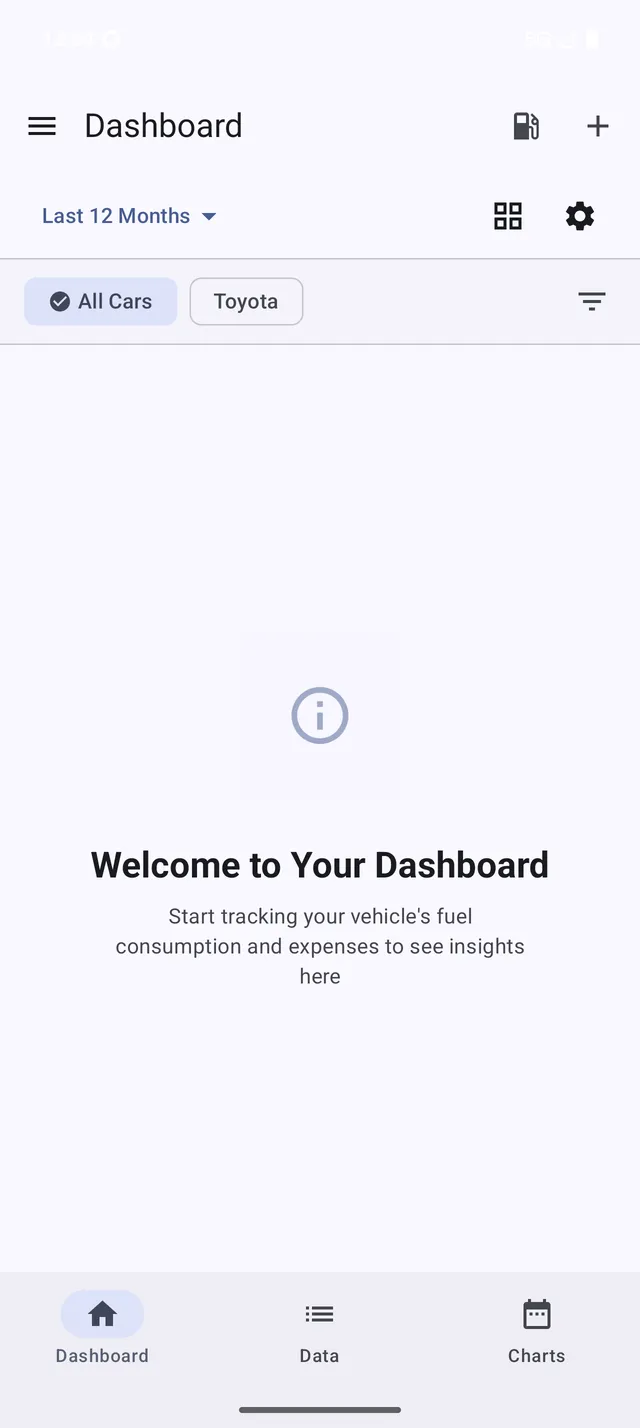 Your dashboard is ready - start adding refuels and expenses
Adding Vehicle Details (Optional)
To add more information about your vehicle:
- Open the navigation menu (hamburger icon)
- Tap Vehicles
- Select your vehicle
- Tap the Edit button (pencil icon)
Available Fields
- Name - Your nickname for the vehicle
- Brand & Model - Make and model (e.g., Honda Civic)
- Year - Manufacturing year
- License Plate - Registration number
- VIN - Vehicle Identification Number
- Fuel Type - Petrol, Diesel, Electric, Hybrid, etc.
- Tank Capacity - Useful for “tank full” calculations
- Initial Odometer - Starting mileage when you begin tracking
- Photo - Add a picture of your vehicle
Tip: You don’t need to fill everything right away. Start with the basics and add details when convenient.
Adding More Vehicles
You can add as many vehicles as you want:
- Go to Menu > Vehicles
- Tap the + button
- Enter the vehicle name
- Add details if desired
- Tap Save
Switching Between Vehicles
If you have multiple vehicles:
- Quick switch: Tap the vehicle name at the top of the Dashboard
- Vehicles screen: Go to Menu > Vehicles and select one
- View all data: Some screens show data across all vehicles
Next Steps
Now that your vehicle is set up, let’s record your first refuel.