Recording Your First Refuel
Learn how to track fuel consumption accurately from the start
Prerequisites
- Vehicle added to app
In this series (5 parts)
Tracking refuels is the core of My Cars. This guide shows you how to record your first fill-up for accurate fuel efficiency calculations.
Recording a Refuel
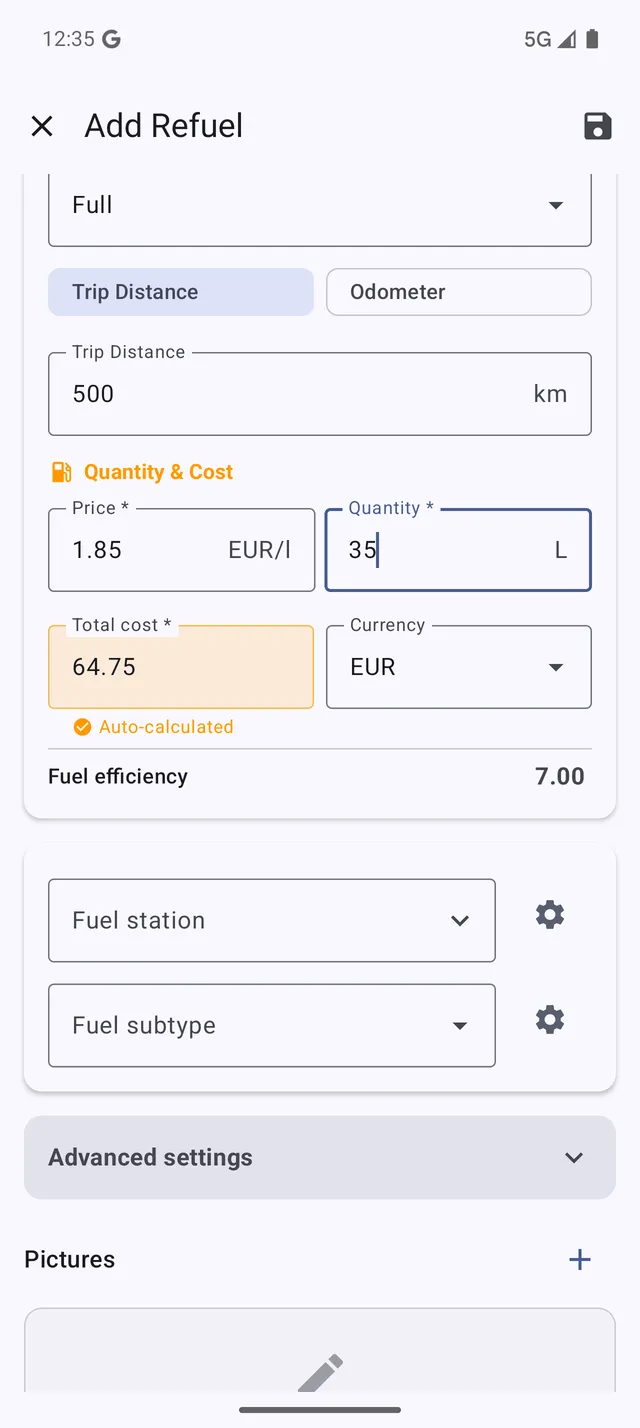 The refuel entry screen with all the essential fields
- From the Dashboard, tap the + button
- Select Refuel
- Fill in the details:
- Date - When you filled up (defaults to today)
- Trip Distance - Distance driven since your last fill-up
- Quantity - How much fuel you added
- Fuel Price - Price per liter/gallon
The Total Cost is calculated automatically from quantity and price. Alternatively, enter the total cost and the app calculates the unit price.
- Tap Save
Trip Distance vs Odometer
By default, My Cars uses Trip Mode where you enter the distance driven since your last refuel.
To use Odometer Mode instead (where you enter your total odometer reading):
- Go to Menu > Settings > Units
- Change Distance Input to Odometer
- Now you’ll enter total mileage instead of trip distance
Tip: Trip mode is simpler if you reset your trip meter after each fill-up. Odometer mode is better if you prefer not to reset anything.
Your First vs Second Refuel
First refuel: The app saves your entry but cannot calculate fuel efficiency yet (it needs two data points).
Second refuel onwards: The app calculates:
- Fuel efficiency (e.g., 8.5 L/100km or 28 MPG)
- Cost per distance (e.g., $0.12/km)
- Comparison to your average
Fill Type Options
For accurate efficiency calculations, indicate how much fuel remained:
- Full Tank - You filled up completely (most accurate for efficiency)
- Partial Fill - You didn’t fill the tank completely
- First Fill - Your very first tracked refuel
Consecutive full tanks give the most accurate consumption data.
Additional Fields
Optional fields for detailed tracking:
- Fuel Type - If your vehicle uses multiple fuel types
- Station - Save favorite fuel stations
- Note - Add any comments
- Photo - Receipt or pump photo
Tips for Accurate Tracking
- Always fill completely when possible - partial fills affect accuracy
- Record immediately - Don’t forget the details
- Be consistent with how you measure distance
- Mark partial fills so the app knows not to calculate efficiency for those
Viewing Your Refuel History
To see all your refuels:
- Go to Menu > Refuels
- View the list sorted by date
- Tap any entry to see details or edit
Next Steps
Now let’s explore your statistics to understand your fuel consumption patterns.