WebDAV Backup (Nextcloud, NAS…)
Back up My Cars to your own server: Nextcloud, ownCloud, a Synology or QNAP NAS, or any WebDAV service
WebDAV is a standard way to store files on a server over the web. Nextcloud, ownCloud, most NAS boxes and many hosting services speak it. With WebDAV backup, My Cars sends your backup straight from your phone to a server you choose. It never passes through My Cars servers, and My Cars never sees it.
PRO+ feature. WebDAV backup is part of PRO+, like Google Drive and OneDrive backup. Without PRO+, WebDAV shows a lock and a PRO+ badge.
What You Need
The setup screen, Connect a WebDAV server, asks for three things:
| Field | What to enter |
|---|---|
| Server address | Your server’s address, or its full WebDAV address (see below) |
| Username | The name you sign in to your server with |
| App password | A separate password for My Cars, created on your server (see below) |
Under Advanced you can change the Backup folder. It is MyCars by default, and My Cars creates it on the server if it doesn’t exist.
Finding Your Server Address
The address must start with https://. If you type the address without https://, My Cars adds it for you.
Nextcloud
The easiest is to type just your server, for example https://cloud.example.com. My Cars asks the server where your files are and uses that folder.
You can also enter the full WebDAV address:
https://<host>/remote.php/dav/files/<user>/If Nextcloud is installed in a subfolder, include it:
https://<host>/nextcloud/remote.php/dav/files/<user>/To copy the exact address, open Nextcloud in a browser and go to Files › Files settings (bottom left) › WebDAV.
The <user> part is your user ID. On some servers, for example ones that sign in through a company directory, it is not the name you sign in with. If you’re not sure, type just the server address.
ownCloud
Same as Nextcloud: type just your server (https://cloud.example.com), or the full address:
https://<host>/remote.php/dav/files/<user>/Synology NAS
- In DSM, open Package Center and install WebDAV Server
- Open WebDAV Server and turn on HTTPS (port
5006by default). My Cars doesn’t use the HTTP port. - In My Cars, enter the NAS address with the HTTPS port and a shared folder your user can write to:
https://<nas-address>:5006/<shared-folder>/My Cars creates its MyCars folder inside that shared folder.
QNAP NAS
- In QTS, go to Control Panel › Network & File Services › Win/Mac/NFS/WebDAV › WebDAV and select Enable WebDAV
- On the same page, choose Dedicated port number, note the HTTPS port number, and click Apply. This WebDAV port is set separately from the NAS’s other HTTPS settings. (With Web server port number, WebDAV uses the NAS web server’s ports instead.)
- In My Cars, enter the NAS address with its HTTPS WebDAV port and a shared folder your user can write to:
https://<nas-address>:<port>/<shared-folder>/Any Other WebDAV Server
Look for “WebDAV” in your provider’s help or settings, and copy the WebDAV address it shows. It must start with https://.
About Certificates
My Cars only connects to servers whose certificate comes from a public authority, such as Let’s Encrypt. A self-signed certificate is not accepted: the connection fails with “The server’s certificate isn’t trusted”. Synology DSM and QNAP QTS can both get a free Let’s Encrypt certificate for your NAS.
Using an App Password
Use an app password rather than your account password. It is a separate password just for My Cars. You can revoke it at any time without changing your main password, and it keeps working if your account uses two-step sign-in.
- Nextcloud: click your avatar › Personal settings › Security › Devices & sessions. Enter an app name (for example “My Cars”) and tap Create new app password.
- ownCloud: Settings › Security › App passwords / tokens. Enter an app name and create a new app passcode.
- Synology, QNAP and others: if your server has no app passwords, use your account password, ideally for a user created just for backups.
My Cars stores the password encrypted on your phone. It is never written into backup files or logs.
Connecting
You can start from any of these places:
- Menu › Settings › Data & Backup: on the WebDAV (Nextcloud, NAS…) card, tap Connect
- Menu > Backup & Restore: choose Cloud Backup, select WebDAV (Nextcloud, NAS…) in Cloud Storage Provider, then tap Sign In
Then:
- Enter the Server address, Username and App password
- Optional: tap Advanced to change the Backup folder
- Tap Connect
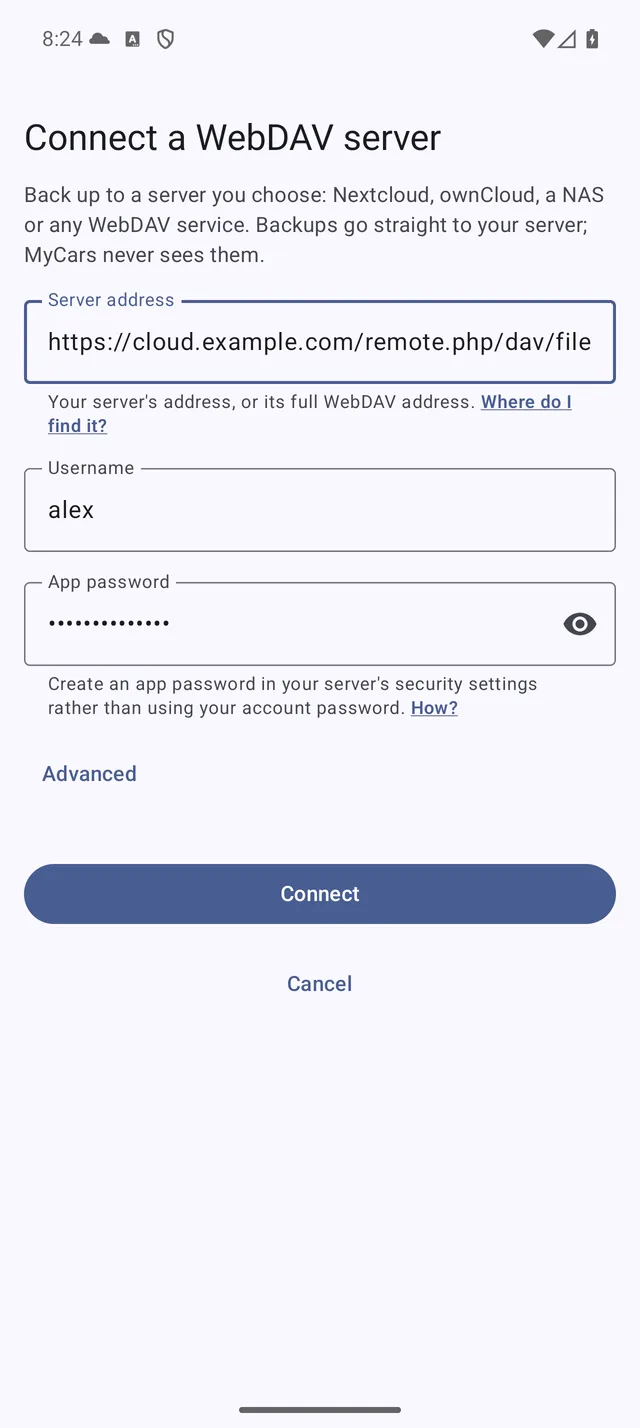 The setup screen, filled in
Before saving anything, My Cars checks that:
- the address is a WebDAV folder
- the server accepts your username and app password
- the backup folder exists, or can be created
- a file can be written there (My Cars writes a small test file and deletes it)
If any check fails, the account isn’t saved and a message under the form says why (see Troubleshooting below). Once connected, Enable WebDAV Backup is switched on.
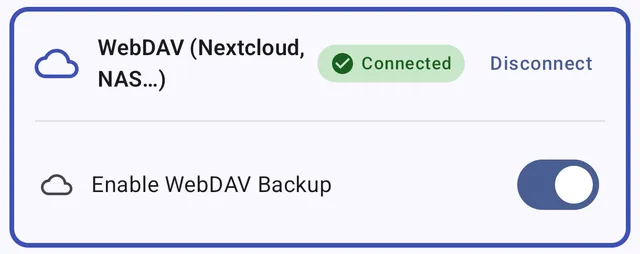 The WebDAV card in Data & Backup once connected
If the server sends My Cars to an address on another server, My Cars doesn’t follow it. The new address appears in Server address with “The server points to the address above. Check that you trust it, then connect again.” Tap Connect again only if you trust it.
Backing Up
Automatic Backup
- Go to Menu › Settings › Data & Backup
- Under Local Backup, turn on Automatic backup. My Cars backs up when you leave the app, if your data changed.
- On the WebDAV (Nextcloud, NAS…) card, keep Enable WebDAV Backup on. Each automatic backup then also uploads a copy to your server.
Only with WIFI and Backup images under Cloud Storage apply to WebDAV as to the other providers. The backup file is mycar_data.xml in your backup folder, and photos go in an images folder inside it.
Backing Up Now
Go to Menu > Backup & Restore, choose Cloud Backup, select WebDAV (Nextcloud, NAS…) and tap Backup to Cloud.
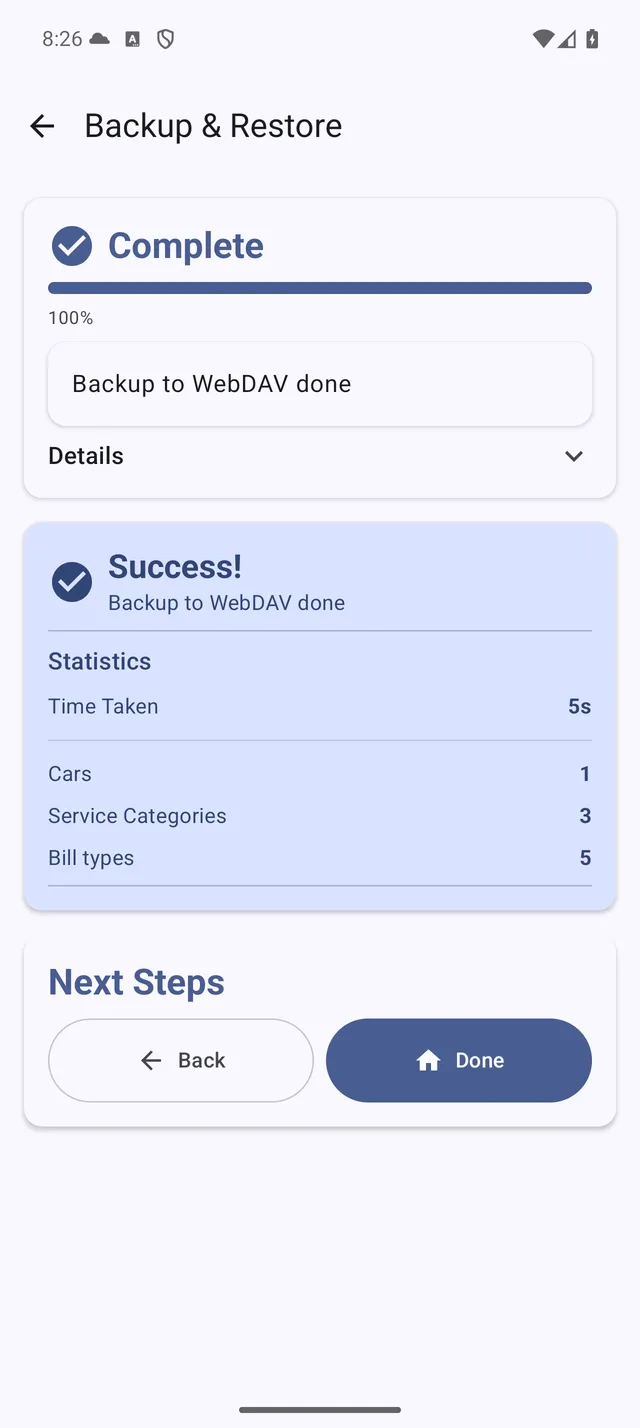 A backup to your server completed
When the Folder Already Has a Backup
When you connect a server whose backup folder already holds a My Cars backup, for example one made by another phone, My Cars doesn’t overwrite it. You see “WebDAV (Nextcloud, NAS…) already has a backup”, and backups to your server wait until you choose:
- Restore it: bring that backup onto this phone
- Replace it: keep this phone’s data, and let the next backup replace the one on the server
Restoring
- Go to Menu > Backup & Restore and choose Cloud Restore
- Select WebDAV (Nextcloud, NAS…) in Cloud Storage Provider. If you’re not connected yet, tap Sign In and connect as above.
- The latest backup is selected. Tap Browse Files to pick another.
- Choose Full (or Smart Merge, PRO) and tap Restore from Cloud
Warning: with Full, the Full Replace switch (“Delete all existing data before restore”) is on by default: everything on the phone is replaced by the backup. Make a fresh backup first if you have entered anything since.
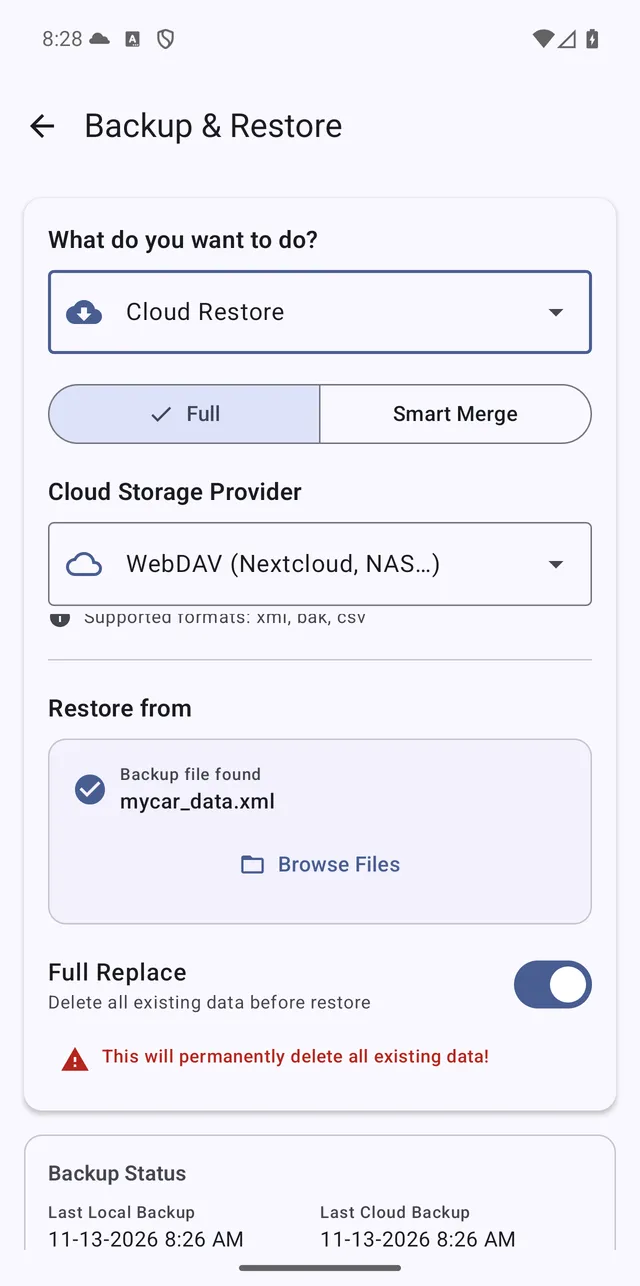 Cloud Restore with WebDAV selected and the latest backup found
On a New Phone
- Install My Cars and make sure PRO+ is active on the new phone
- In the welcome screens, tap I’m Returning (Restore Backup)
- Choose Restore from Cloud, then WebDAV (Nextcloud, NAS…). WebDAV is listed only when PRO+ is active.
- Connect to your server, then wait for the restore to complete
See Backup & Cloud Storage for what a backup contains and how Full and Smart Merge differ.
”Paused” Messages
PRO+ Not Active on This Phone
If WebDAV is connected and switched on but PRO+ isn’t active on this phone (it lapsed, or the phone hasn’t picked it up yet), the WebDAV (Nextcloud, NAS…) card in Data & Backup says:
WebDAV (Nextcloud, NAS…) backup is switched on but paused: PRO+ is not active on this phone.
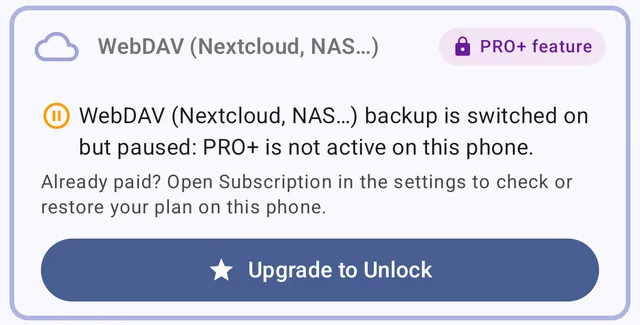 The WebDAV card when PRO+ isn’t active on the phone
Your other backups keep running, but nothing goes to your server. The backup notification marks WebDAV with ⏸. Your server, folder and password stay saved, so uploads resume as soon as PRO+ is active again. If you already paid, open Subscription in the settings to check or restore your plan on this phone.
”WebDAV backup paused” Notification
This notification means your server rejected the saved password, for example because you revoked the app password. Tap it: the setup screen opens with everything filled in except the password. Enter the password (or a new app password) and tap Connect to resume backups.
Troubleshooting
| Message | What to do |
|---|---|
| Enter a valid server address. | Check the address for typos. Don’t put your username or password in the address itself. |
| Use an https:// address. MyCars doesn’t send your password over an unencrypted connection. | My Cars refuses http:// addresses. Turn on HTTPS on your server and use its https:// address (on a NAS, the HTTPS port). |
| No WebDAV folder found at this address. | The address answers, but not as a WebDAV folder. Use the address for your server above, or the WebDAV address your provider shows. |
| Wrong username or app password. | Check both. If you use two-step sign-in, create an app password. |
| The server’s certificate isn’t trusted. Use an address whose certificate comes from a public authority, such as Let’s Encrypt. | Self-signed certificates aren’t accepted. Install a publicly trusted certificate (Let’s Encrypt is free), or use an address that has one. |
| Can’t reach the server. Check the address and your connection. | Check the address and port. A home server may not be reachable from outside your home network. |
| Connected, but MyCars can’t create files in this folder. Check its permissions on the server. | Give your user write access to the folder. On a NAS, include a shared folder you can write to in the address. |
| Enter a folder name, without ”..”. | Under Advanced, enter a plain folder name such as MyCars. |
| This device can’t store the password securely, so WebDAV backup isn’t available on it. | My Cars needs the phone’s secure storage to keep your password. Use another provider on this phone. |
| Couldn’t connect to the server. Try again later. | The server answered with an unexpected error. Try again later, and check your server if it keeps happening. |
If your server is only reachable at home, a backup made while you’re away fails as a connection problem. It doesn’t ask you to sign in again.