Backup & Cloud Storage
Complete guide to protecting your data with local and cloud backups
Intermediate 10 min
Your vehicle data represents years of tracking. This guide covers all backup options to keep it safe.
Backup Methods Overview
| Method | Subscription | Auto-Sync | Multi-Device |
|---|---|---|---|
| Local File | Free | No | Manual transfer |
| Dropbox | PRO | Yes | Yes |
| Google Drive | PRO+ | Yes | Yes |
| OneDrive | PRO+ | Yes | Yes |
Local Backup (Free)
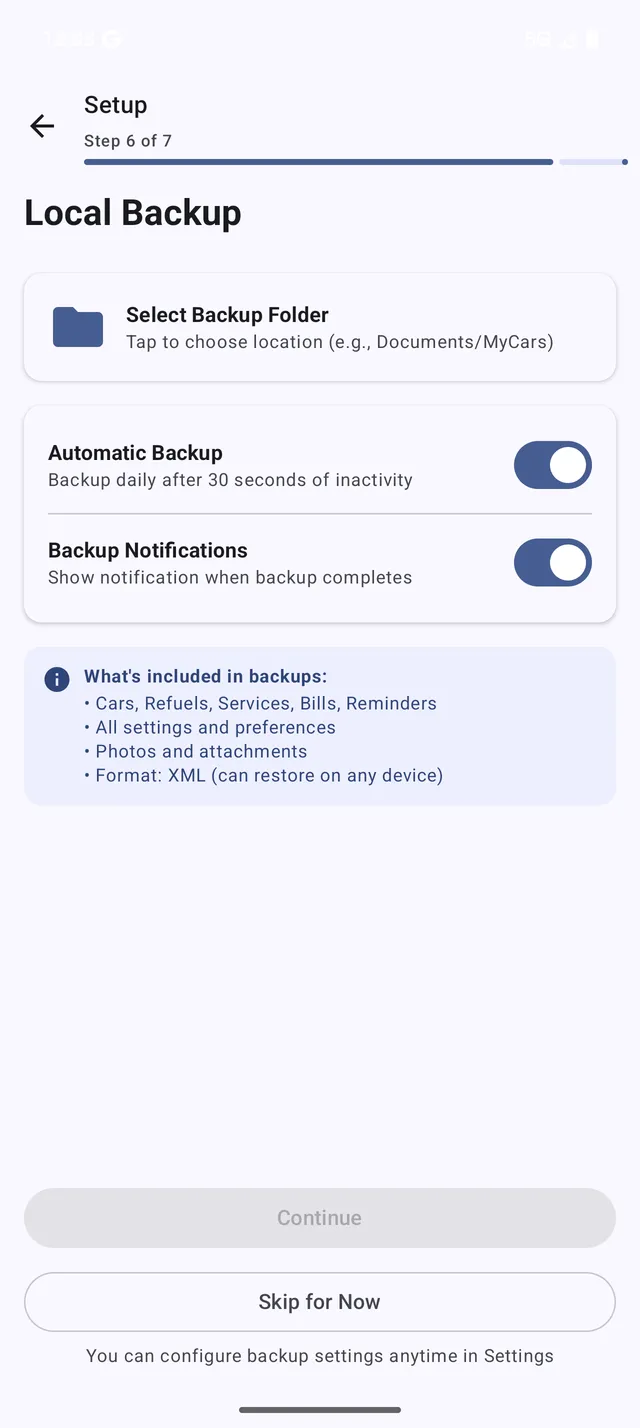 The Backup & Restore screen with local backup options
Creating a Backup
- Go to Menu > Backup & Restore
- Tap Create Backup
- Choose save location
- File is saved as
.mcbformat
What’s Included
The backup contains:
- All vehicles and their photos
- Complete refuel history
- All services and maintenance
- Bills and expenses
- Trips and mileage
- Reminders
- App settings and preferences
Backup File Storage
Recommended locations:
- Downloads folder - Easy to find
- Cloud storage app folder - Syncs to your cloud
- External storage - SD card if available
Restoring from Local Backup
- Go to Menu > Backup & Restore
- Tap Restore Backup
- Navigate to your backup file
- Confirm to restore
Warning: Restoring overwrites all current data.
Cloud Backup (PRO/PRO+)
Setting Up Cloud Backup
- Go to Menu > Backup & Restore
- Tap Cloud Backup
- Select your provider:
- Dropbox (PRO and PRO+)
- Google Drive (PRO+ only)
- OneDrive (PRO+ only)
- Sign in to your account
- Authorize My Cars to access a dedicated folder
Automatic Sync
Once configured:
- Backups happen automatically after changes
- Data syncs in the background
- No manual action needed
- Progress shown in notification
Sync Frequency
The app syncs:
- After adding/editing refuels, services, bills
- After changing settings
- When opening the app after changes
- On demand when you tap “Sync Now”
Storage Usage
My Cars uses minimal cloud space:
- Typical backup: 1-10 MB
- Image attachments increase size
- Old backups are automatically cleaned up
Changing Cloud Providers
To switch providers (e.g., Dropbox to Google Drive):
- Go to cloud backup settings
- Tap Change Provider
- Select new provider
- Sign in and authorize
- Data transfers automatically
Your backup history moves to the new provider.
Multi-Device Sync
With cloud backup, use My Cars on multiple devices:
Initial Setup on New Device
- Install My Cars
- On Welcome screen, tap Restore Data
- Select Cloud
- Sign in to your cloud account
- Select your backup
- Wait for restore to complete
Keeping Devices in Sync
- Changes on one device sync to cloud
- Other devices receive updates when opened
- Conflicts are handled automatically (latest wins)
Tip: Always let sync complete before closing the app.
Restoring on a New Phone
When you upgrade phones:
- Install My Cars on new phone
- During setup, tap Restore Data
- Choose your cloud provider or local file
- Sign in if using cloud
- All data is restored
Troubleshooting
”Backup Failed”
- Check internet connection
- Verify cloud storage isn’t full
- Sign out and back in to cloud provider
- Check app has storage permission
”Can’t Find Backup File”
- Look in Downloads folder
- Search for
.mcbfiles - Check cloud provider’s folder in their app
”Restore Failed”
- File might be corrupted
- Try an older backup if available
- Ensure app version is current
”Cloud Sync Not Working”
- Check internet connection
- Open cloud provider app, verify it’s signed in
- Go to My Cars backup settings
- Tap Sync Now to force sync
- Check for error messages
Best Practices
- Use cloud backup if subscribed - automatic and reliable
- Keep local backups as extra safety
- Test restoring occasionally on another device
- Keep multiple backups - don’t rely on just one
- Backup before major changes - before deleting vehicles, etc.
- Monitor cloud storage - ensure there’s space