Scan a Receipt (Snap-to-Log)
Photograph a fuel receipt and let My Cars fill in the refuel for you — from the refuel screen, the + menu, or a home-screen widget
Snap-to-Log lets you photograph (or share) a fuel receipt and have My Cars read the details for you. It pulls the amount, price, total, date — and even the odometer — then pre-fills a refuel for you to review and save. No more typing numbers at the pump.
Snap-to-Log is a PRO feature. PRO includes 5 scans per month; PRO+ allows up to 50 scans per day.
Where to Start a Scan
You can launch a scan from three places:
- The scan icon on the refuel screen
- The + menu on the Dashboard
- The Scan receipt home-screen widget (see below)
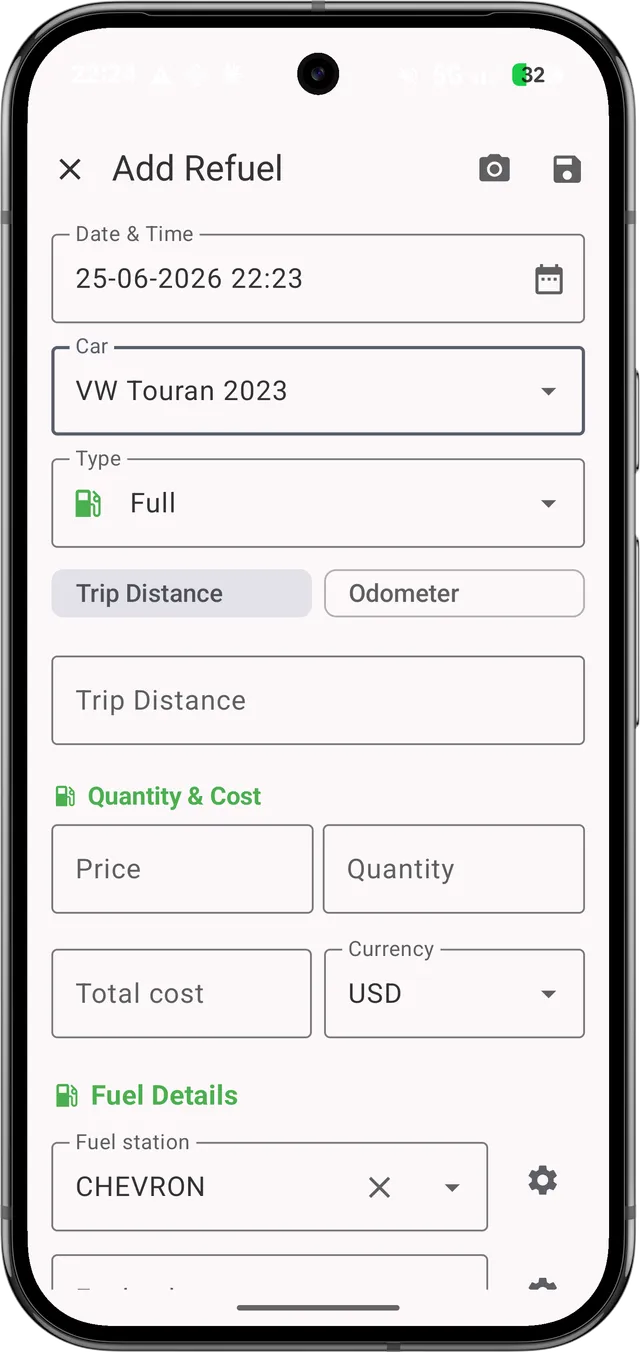 The
The Scan fuel receipt icon on the refuel entry screen
If the refuel form already has data entered, starting a scan asks Discard entered data? — scanning replaces what’s on the form. Choose Keep editing to cancel, or continue to scan.
Taking the Photo
When you start a scan, the Snap fuel receipt sheet opens:
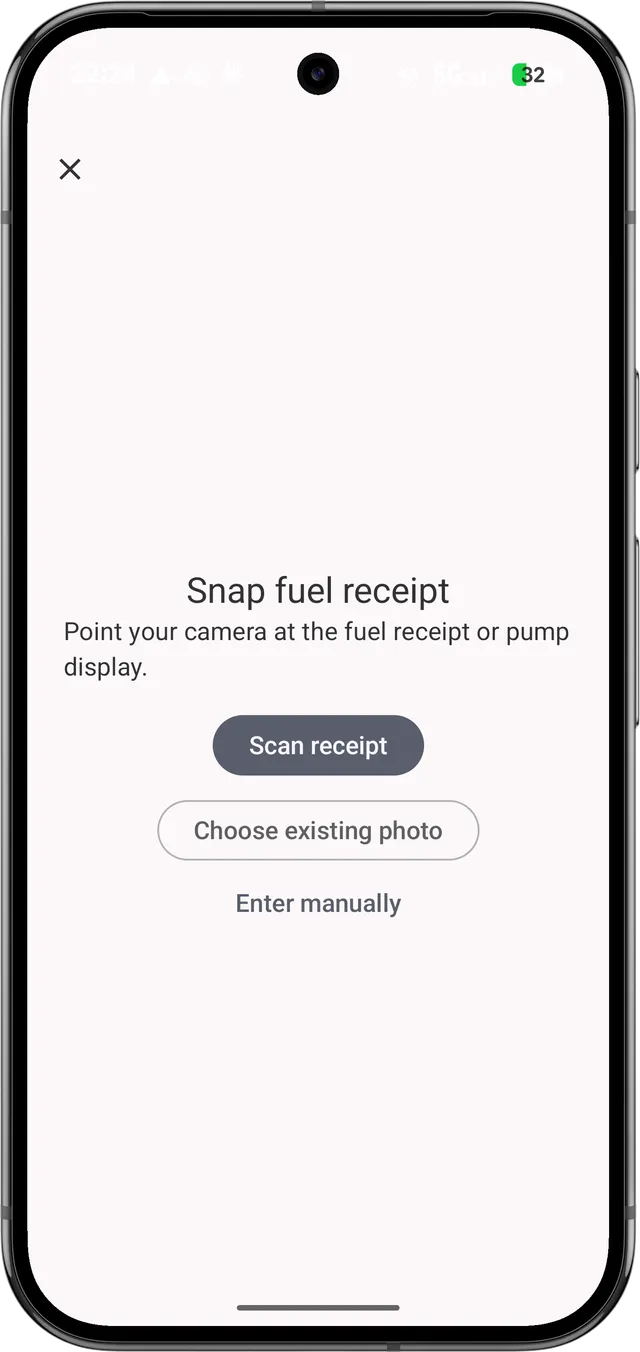 Point your camera at the fuel receipt or pump display
You have three options:
Scan receipt- Use the camera to photograph the receipt or pump displayChoose existing photo- Pick a photo you already took from your galleryEnter manually- Skip scanning and fill in the refuel yourself
Adding an Odometer Photo (Optional)
You can add a second photo of your odometer so My Cars reads your mileage too:
- Tap
Add another phototo include the odometer - Or just scan the receipt on its own
- Use
Start overto clear the photos and begin again
When your photos are ready, tap Scan to send them for reading.
Reviewing and Saving
While My Cars reads the receipt you’ll see progress (Reading receipt…, Checking the total…).
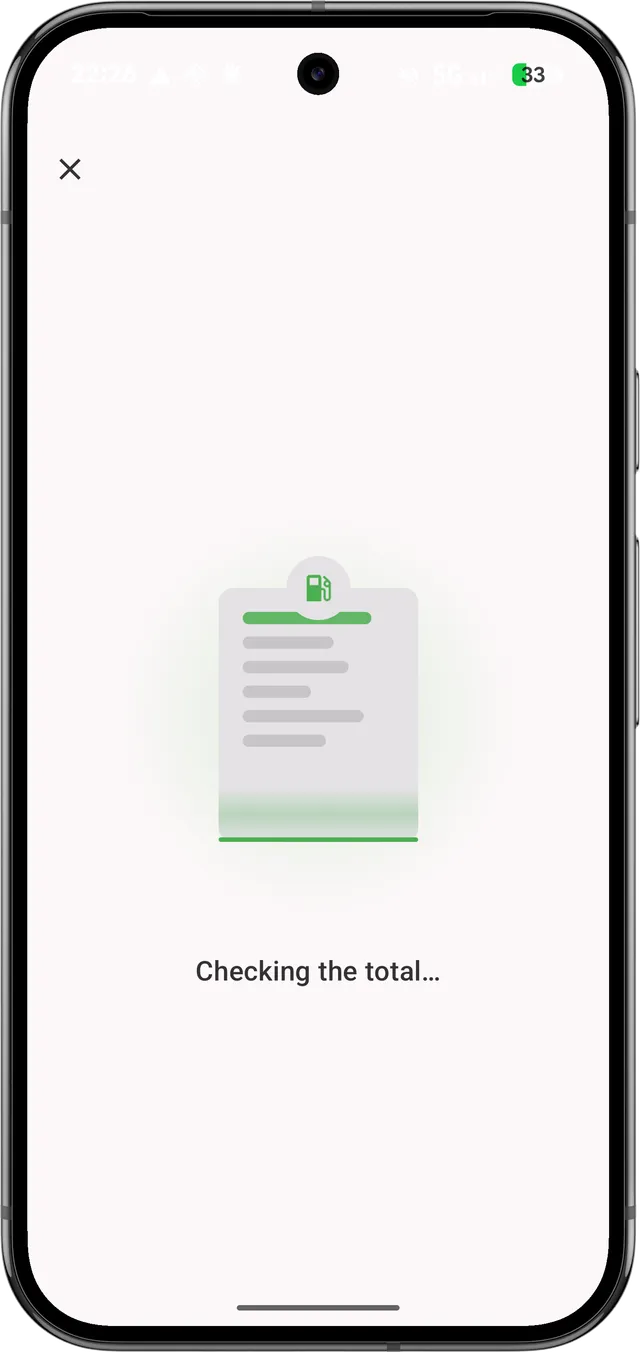 My Cars reads the receipt and finds the numbers
When it’s done, the Review scanned refuel sheet shows the values it found.
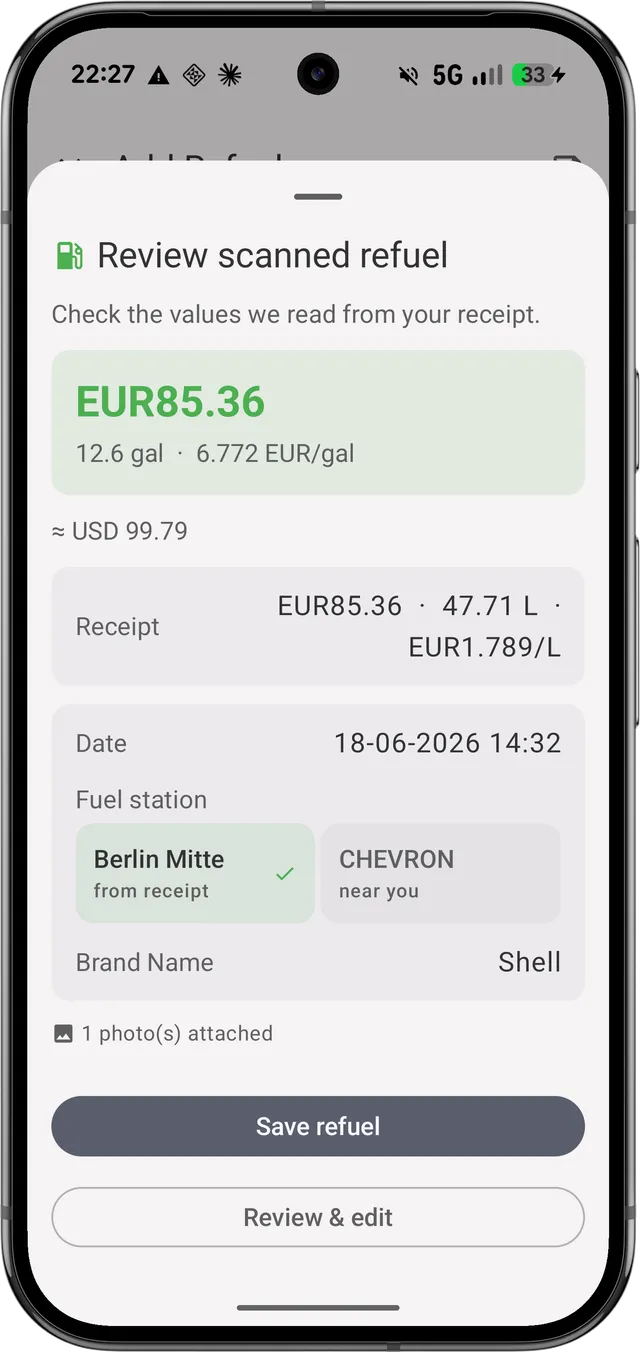 Check the values read from your receipt before saving
Save refuel- Save the scanned values as-isReview & edit- Open the full refuel form to adjust anything first
A few things to watch for:
- If confidence is low, you’ll see “Double-check these — we couldn’t fully verify the numbers.” Review carefully before saving.
- If the currency couldn’t be read, you’ll be asked to confirm it before saving.
- The photos you scanned are attached to the refuel automatically, so you keep the receipt with the record.
What Gets Read
Snap-to-Log can pick up these fields from a typical fuel receipt:
| Field | Read from receipt? |
|---|---|
| Quantity (liters/gallons) | Yes |
| Fuel price (per unit) | Yes |
| Total cost | Yes |
| Date | Yes |
| Odometer | Yes (best with a separate odometer photo) |
| Fuel station | Yes, when shown on the receipt |
| Currency | Yes, when shown (confirm if unclear) |
Always give the values a quick check — receipts vary, and you can fix anything on the refuel form.
The Scan Receipt Widget
My Cars includes a Scan receipt home-screen widget so you can start a scan with a single tap — without opening the app first.
Adding the Widget
- Long-press an empty spot on your Android home screen
- Tap Widgets
- Find My Cars and choose
Scan receipt(“Scan a fuel receipt for a car”) - Drag it onto your home screen
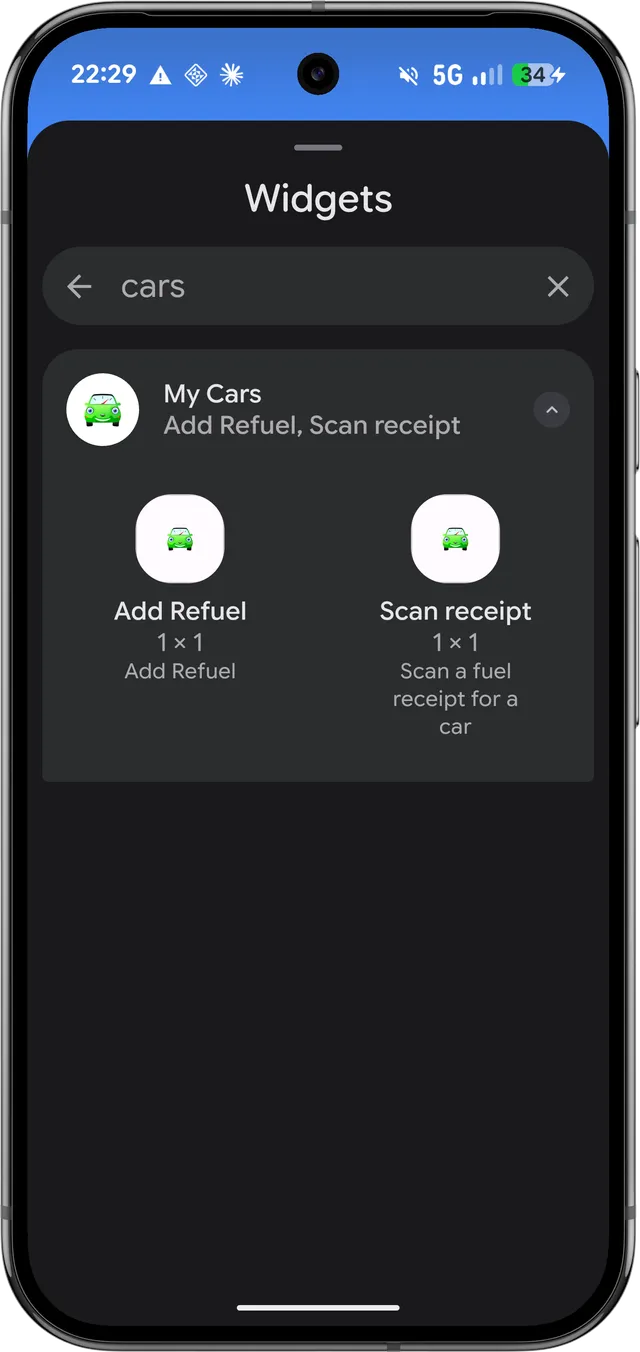 Pick the
 Scan receipt widget (1×1) from My Cars in the Android widget picker
Setting It Up
The first time, tap the widget to configure it. Under Set up scan widget, Choose the car this widget scans receipts for. If you ever need to change it, tap Configure on the widget.
Using It
Tap the widget any time you’re at the pump — it jumps straight into the Snap fuel receipt capture screen for the car you picked, ready to photograph the receipt.
Privacy
My Cars shows a one-time notice the first time you scan (Receipt scanning):
When you scan a receipt, the photo is sent securely to Google Cloud to be read. It is never used to train AI and isn’t stored after reading — your photo stays on your device.
In short: the photo is sent securely only to be read, isn’t kept on the server afterward, and isn’t used for AI training. Tap Got it to continue.
Scan Limits
| Plan | Scan allowance |
|---|---|
| PRO | 5 scans per month |
| PRO+ | Up to 50 scans per day |
If you reach your limit you’ll see “You’ve reached your scan limit. Upgrade or try again later.” You can always tap Enter manually to add the refuel without a scan.
Troubleshooting
| Message | What it means | What to do |
|---|---|---|
| ”Couldn’t read the receipt. Try again or enter it manually.” | The image was too blurry or unclear | Retake the photo in good light, or enter it manually |
| ”Couldn’t reach the server. Check your connection and try again.” | No network connection | Reconnect and tap Try again |
| ”The scanner is busy right now. Wait a moment and try again.” | Temporary load | Wait a few seconds and retry |
| ”You’ve reached your scan limit. Upgrade or try again later.” | Out of scans for the period | Wait for the next period, upgrade, or enter manually |
| ”Receipt scanning isn’t available right now. Try again later.” | Service temporarily unavailable | Try again later |
Tips for the Best Results
- Lay the receipt flat and fill the frame
- Good lighting - avoid shadows and glare on the paper
- Include the totals - make sure the amount, price, and total are visible
- Separate odometer photo - for the most reliable mileage reading
- Always review - confirm the numbers before saving