Refuels & Fuel Tracking
Complete guide to tracking fuel consumption, costs, and efficiency
Fuel tracking is the core feature of My Cars. This guide covers everything from basic recording to advanced analysis.
Recording a Refuel
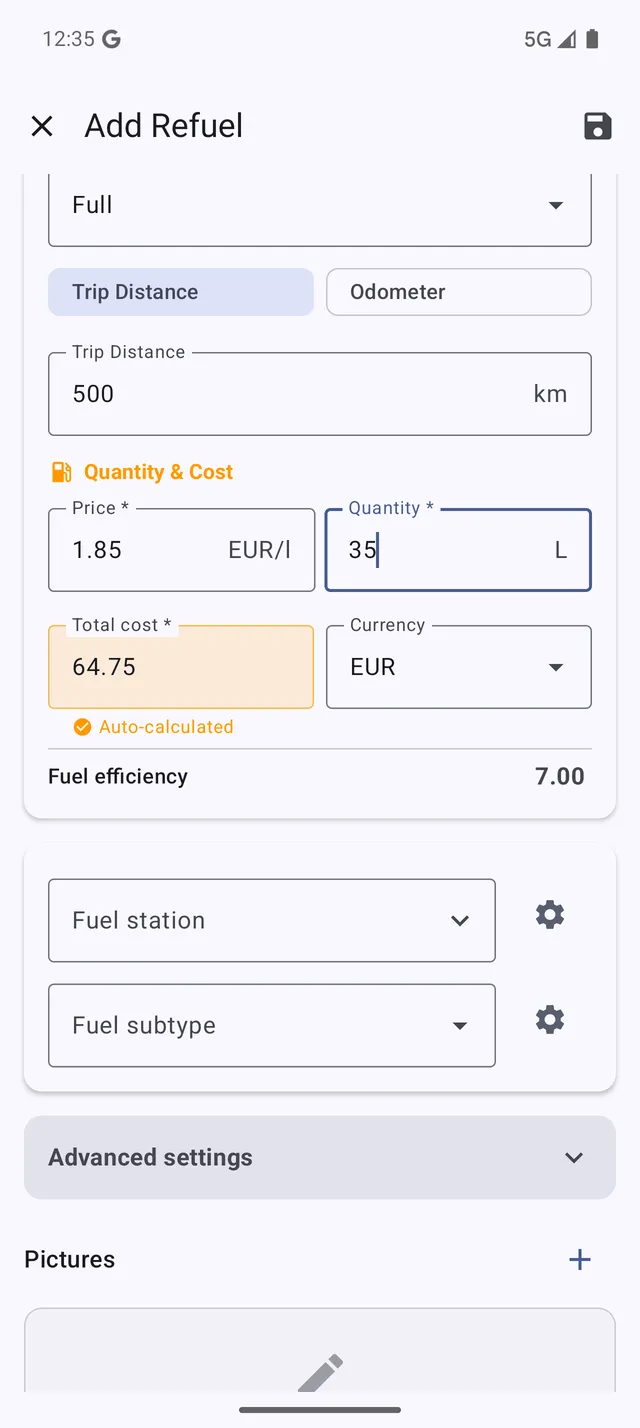 The refuel entry screen with all the essential fields
Basic Entry
- Tap the + button on the Dashboard
- Select Refuel
- Enter the required fields:
- Date - When you refueled
- Trip Distance - Distance since last fill-up
- Quantity - Fuel amount in liters/gallons
- Fuel Price - Price per unit
The Total Cost is calculated automatically. Alternatively, enter the total cost and the app calculates the unit price.
Tip: Pay the same price every time, such as a fixed charging tariff? Set Settings > Data Entry > Pre-fill last price to Full price (0 in older versions) and the price is filled in for you. See the Refuels FAQ.
Fill Types
Choose the appropriate fill type for accurate calculations:
| Fill Type | When to Use | Efficiency Calculated? |
|---|---|---|
| Full Tank | Filled to the top | Yes |
| Partial Fill | Didn’t fill completely | No |
| First Fill | Your very first entry | No (baseline only) |
Important: Only consecutive full tanks produce accurate fuel efficiency readings.
Additional Fields
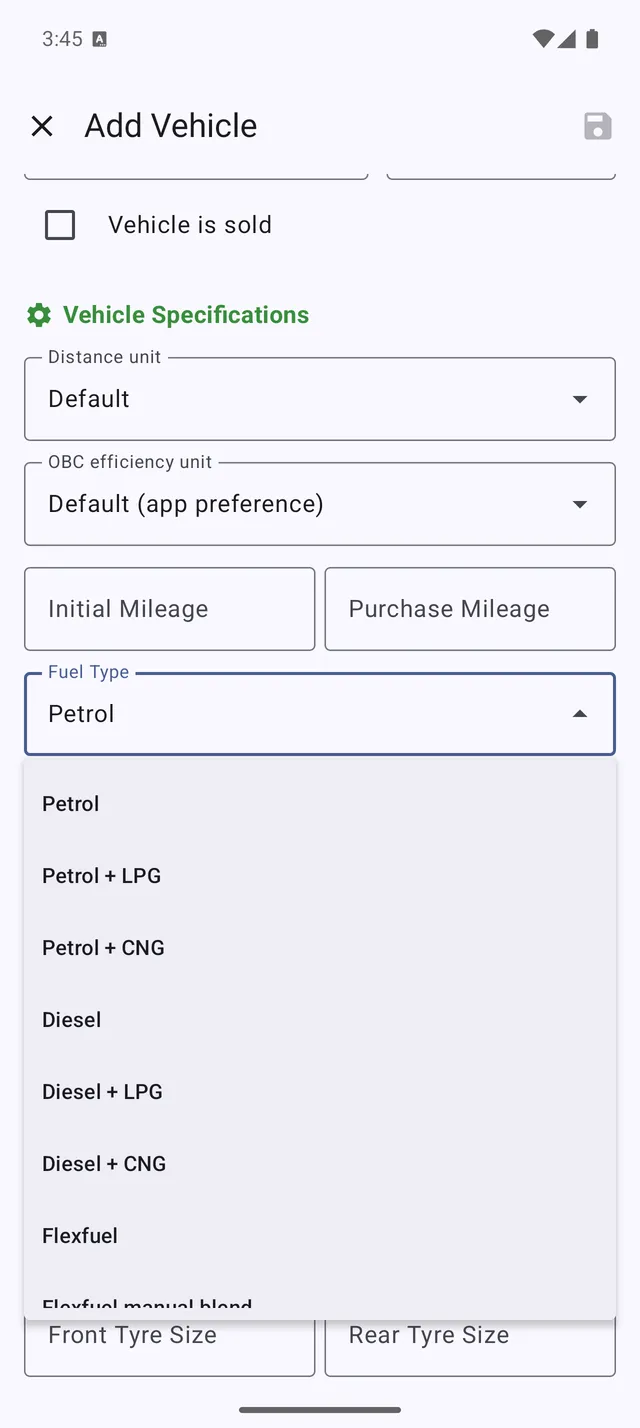 Selecting a fuel type for multi-fuel vehicles
- Fuel Type - For multi-fuel vehicles (petrol, diesel, E85)
- Fuel Station - Track your preferred stations
- Note - Add comments
- Photo - Attach receipt images
Distance Tracking Modes
Trip Mode (Default)
Enter the distance driven since your last refuel:
- Reset your trip meter at each fill-up
- Enter the trip distance when refueling
- Simple and straightforward
Odometer Mode
Enter your total odometer reading:
- No need to reset anything
- App calculates distance automatically
- Switch in Menu > Settings > Units > Distance Input
Fuel Stations
Track your favorite stations for price comparisons and convenience.
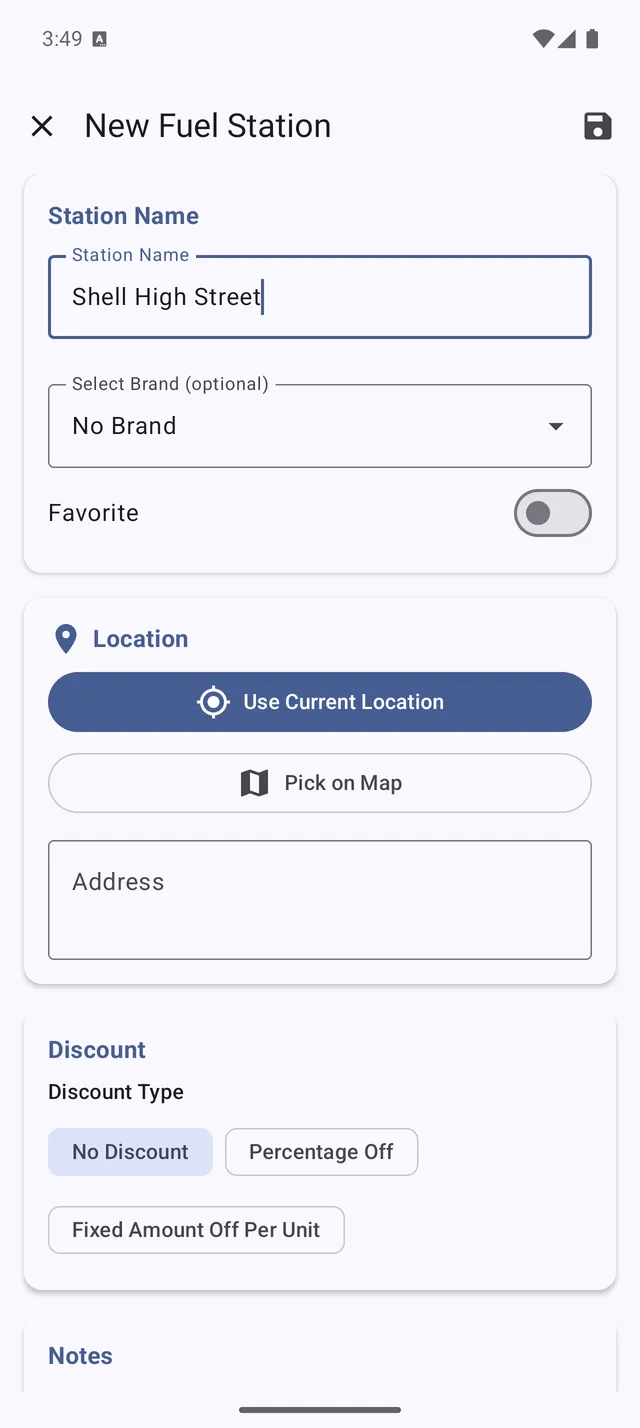 A fuel station with its location on the map
Adding Stations
- When recording a refuel, tap Station
- Tap Add New Station
- Enter name and optional details:
- Location
- Brand
- Loyalty program
- Default discount (PRO+)
Station Management (PRO+)
With PRO+, manage brands with default discounts:
- Create fuel brands (Shell, BP, etc.)
- Set default discounts per brand
- Discounts apply automatically
Viewing Refuel History
- Go to Menu > Refuels
- View entries sorted by date
- Filter by vehicle or date range
- Tap any entry to view or edit
Sorting and Filtering
- Date range - Last month, year, or custom
- Vehicle - One or all vehicles
- Fuel type - If using multiple
Understanding Fuel Efficiency
How It’s Calculated
L/100km = (Fuel Quantity ÷ Distance) × 100
MPG = Distance ÷ Fuel Quantity
The app shows your:
- Current efficiency (last refuel)
- Average efficiency (all time)
- Best/Worst efficiency records
What Affects Efficiency
- City vs highway driving
- Traffic conditions
- Air conditioning use
- Weather and temperature
- Tire pressure
- Vehicle load
- Driving style
Improving Accuracy
- Always full tank - Partial fills skew calculations
- Same pump position - Stop at the same “click”
- Record every refuel - Don’t skip entries
- Check for errors - Review unusual readings
Fuel Cost Analysis
Track spending with:
- Cost per liter/gallon - Price trends over time
- Cost per distance - How much each km/mile costs
- Monthly totals - Budget tracking
- Price comparisons - Best stations (PRO+)
Charts and Trends
View in Menu > Charts:
- Fuel Efficiency Over Time - Spot patterns
- Fuel Cost Trend - Track price changes
- Consumption by Month - Seasonal patterns
- Station Price Comparison - Find best deals (PRO+)
Exporting Refuel Data (PRO)
- Go to Menu > Export
- Select Refuels
- Choose format (CSV or PDF)
- Select date range
- Share or save
Tips for Success
- Record immediately - Don’t forget details
- Be consistent - Same measurement method
- Mark partial fills - Don’t pollute efficiency data
- Review monthly - Catch entry errors
- Compare vehicles - Learn their characteristics