Settings & Preferences
Configuring units, preferences, notifications, and app behavior
How do I access Settings?
Open the navigation menu (hamburger icon) and tap Settings. Settings are organized into sections:
- Units - Currency, distance, consumption formats
- Refuels - Recording preferences
- Charts - Display options
- Notifications - Alert settings
- Backup - Backup configuration
- Dashboard - Home screen customization
How do I change my units?
- Go to Menu > Settings > Units
- Configure each unit type:
- Currency - USD, EUR, GBP, etc.
- Distance - Kilometers or Miles
- Fuel Consumption - L/100km, MPG (US), MPG (UK), km/L
- Fuel Quantity - Liters or Gallons
- Fuel Price - Per liter or per gallon
Changes apply immediately to all data displays.
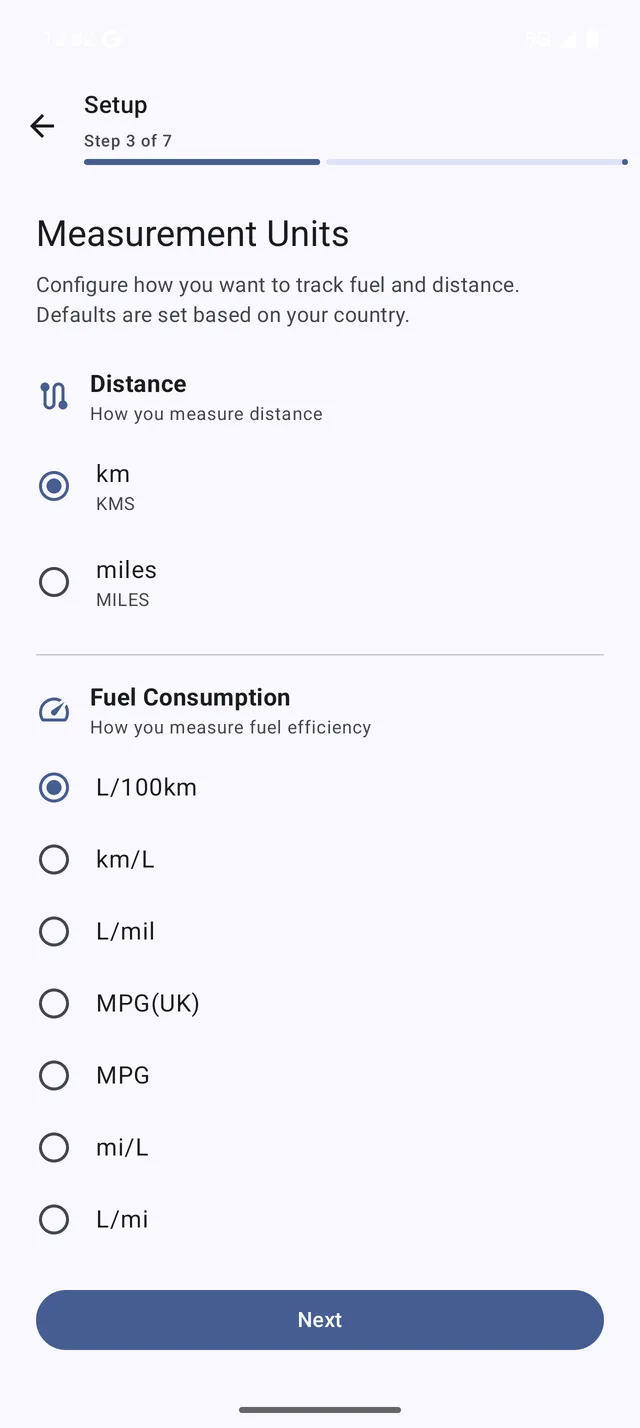 The Units settings screen
Can I record expenses in a different currency?
Yes. When you add a refuel, service, bill, or trip, you can record it in a foreign currency along with the exchange rate. My Cars converts it to your default currency automatically, so your totals and charts stay consistent — handy for trips abroad or cross-border fill-ups.
What refuel preferences are available?
In Settings > Refuels:
| Setting | Description |
|---|---|
| Distance input | Trip distance or Odometer reading |
| Show efficiency dialog | Display efficiency after saving refuel |
| Default fill type | Full tank, Partial, or ask each time |
| Fuel types | Manage available fuel types |
| Fuel subtypes | Custom fuel grades (PRO) |
How do I customize the Dashboard?
- Go to Menu > Settings > Dashboard
- Configure display options:
- Metrics to show - Efficiency, costs, distance, etc.
- Period comparison - vs last month, last year
- Recent activity - Number of items to display
- Vehicle health - Show maintenance status
Or long-press items on the Dashboard to rearrange or hide them.
How do I set up notifications?
- Go to Menu > Settings > Notifications
- Enable notifications for:
- Reminders - Service and maintenance alerts
- Budget alerts - Spending warnings (PRO)
- Insights - Smart suggestions (PRO+)
- Set notification timing preferences
Note: You must grant notification permission when prompted for alerts to work.
How do I configure backup settings?
- Go to Menu > Settings > Backup
- Configure options:
- Auto backup - Backup on app exit if data changed
- Backup destination - Local folder or cloud service
- Max backups - Number of backups to keep
- Share after backup - Prompt to share backup file
See the Backup & Restore guide for detailed backup instructions.
How do I customize chart settings?
In Settings > Charts:
| Setting | Description |
|---|---|
| Exclude partial fills | Remove partial refuels from efficiency charts |
| Y-axis configuration | Left/right axis unit selection |
| Date range default | Default time period for charts |
| Show trend lines | Display trend analysis |
How do I reset settings to defaults?
- Go to Menu > Settings
- Scroll to the bottom
- Tap Reset to defaults
- Confirm the reset
This resets preferences only, not your vehicle data.
What permissions does the app need?
My Cars may request these permissions:
| Permission | Purpose |
|---|---|
| Storage | Local backup and photo attachments |
| Camera | Capture receipt photos |
| Notifications | Reminder and alert notifications |
| Location | Fuel station suggestions (optional) |
Grant only the permissions you need. The app works without optional permissions.
How do I optimize battery usage?
If reminders aren’t working reliably:
- Go to your device Settings > Apps > My Cars
- Select Battery
- Choose Unrestricted or disable battery optimization
This ensures reminder notifications are delivered on time.