Backup & Restore
How to backup, restore, and transfer your data
Backup Options
| Method | Plan | Description |
|---|---|---|
| Local Backup | Free | Manual backup to device storage |
| Dropbox | PRO | Automatic cloud backup |
| Google Drive | PRO+ | Automatic cloud backup |
| OneDrive | PRO+ | Automatic cloud backup |
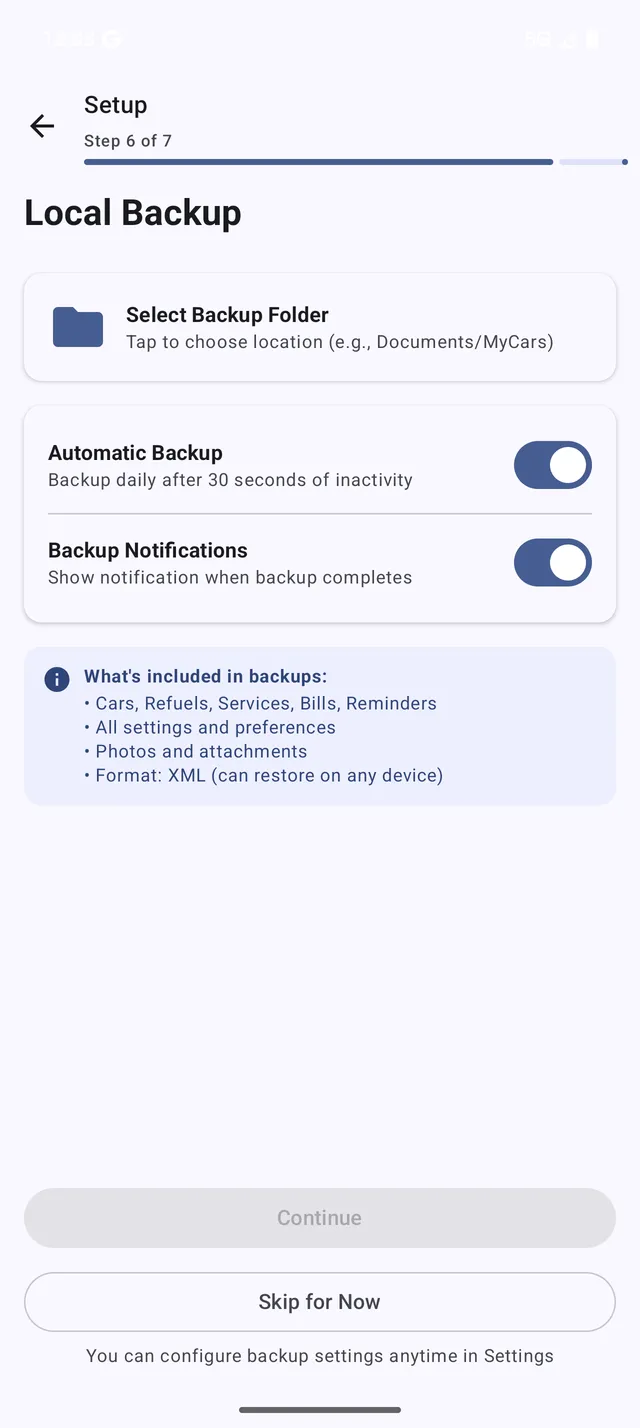 The Backup & Restore screen
How do I transfer data to a new phone?
- On your old phone: Go to Menu > Backup & Restore > Select “Full Export” > Target “Internal Memory” > Press START
- Transfer the file to your new phone via email or USB cable (the backup is saved in the folder shown at the bottom of the screen)
- On your new phone: Install My Cars, go to Menu > Backup & Restore > Select “Full Import” > Target “Internal Memory” > Select the backup file
All your data (vehicles, refuels, reminders, etc.) will be restored.
Where are backups stored?
Backups are saved to your device storage. The default folder is shown at the bottom of the Backup & Restore screen. You can change the directory by tapping the folder icon.
Google Backup or Google Drive: what is the difference?
Older versions had a setting called Enable Google Backup. That is the Android device backup of your Google account, not a file in your Drive folder. It is still there and still free: Settings > Data & Backup > Google Android Backup (the switch is only active while local backup is enabled). Backing up directly into your Google Drive folder is new in version 3 and part of PRO+. A lifetime PRO licence (Pro Key) equals the PRO plan: local backup, Google Android Backup and Dropbox.
How do I backup/restore with Google Drive? (PRO+)
- Subscribe to PRO+ from Menu > Compare Plans
- Go to Menu > Backup & Restore
- Tap Cloud Storage Provider and select Google Drive
- Tap Sign in to Google Drive and authenticate
- For backup: Select “Full Export” and press START
- For restore: Select “Full Import”, choose your backup file, and press START
Your data is encrypted and stored securely in your Google Drive.
How do I backup/restore with OneDrive? (PRO+)
- Subscribe to PRO+ from Menu > Compare Plans
- Go to Menu > Backup & Restore
- Tap Cloud Storage Provider and select OneDrive
- Tap Sign in to OneDrive and authenticate with your Microsoft account
- For backup: Select “Full Export” and press START
- For restore: Select “Full Import”, choose your backup file, and press START
How do I backup/restore with Dropbox? (PRO)
- Subscribe to PRO or PRO+ from Menu > Compare Plans
- Go to Menu > Backup & Restore
- Tap Cloud Storage Provider and select Dropbox
- Authenticate with your Dropbox account
- For backup: Select “Full Export” and press START
- For restore: Select “Full Import”, choose your backup file, and press START
How do I backup/restore with Internal Memory?
- Go to Menu > Backup & Restore
- Select “Full Export” (backup) or “Full Import” (restore)
- Set Target to “Internal Memory”
- Choose the directory using the folder icon
- Press START
Can I use automatic backups?
Yes! All backup methods support both manual and automatic backups:
- Go to Menu > Settings > Data & Backup
- Enable Local Backup for automatic local backups
- For cloud providers (Dropbox, Google Drive, OneDrive), enable automatic backup in the cloud storage settings
- The app will automatically backup when data changes
You can also manually backup and restore from any storage method at any time.
How do I include photos in my backup?
When backing up to cloud storage, you can include attached photos:
- Go to the backup settings
- Enable Include photos option
- Photos attached to refuels, services, and other records will be included
Note: Including photos increases backup size and upload time.