Tires & Parts
Track your tire sets, seasonal swaps, tread depth, engine oil and every part you change — filters, brakes, battery and your own parts — with reminders for the next change
Tires & parts is your car’s garage: the tire sets you own, the one on the car, how much tread is left, and every part you change — from engine oil and filters to the battery, brakes and a roof box. It answers three questions: what’s on the car, when is the next change, and what has it cost me.
PRO feature. Tires & parts is included with PRO (up to 2 tire sets per car) and PRO+ (unlimited sets, front and rear tire pairs tracked separately). On the free plan, the car’s menu shows an example of what the garage looks like.
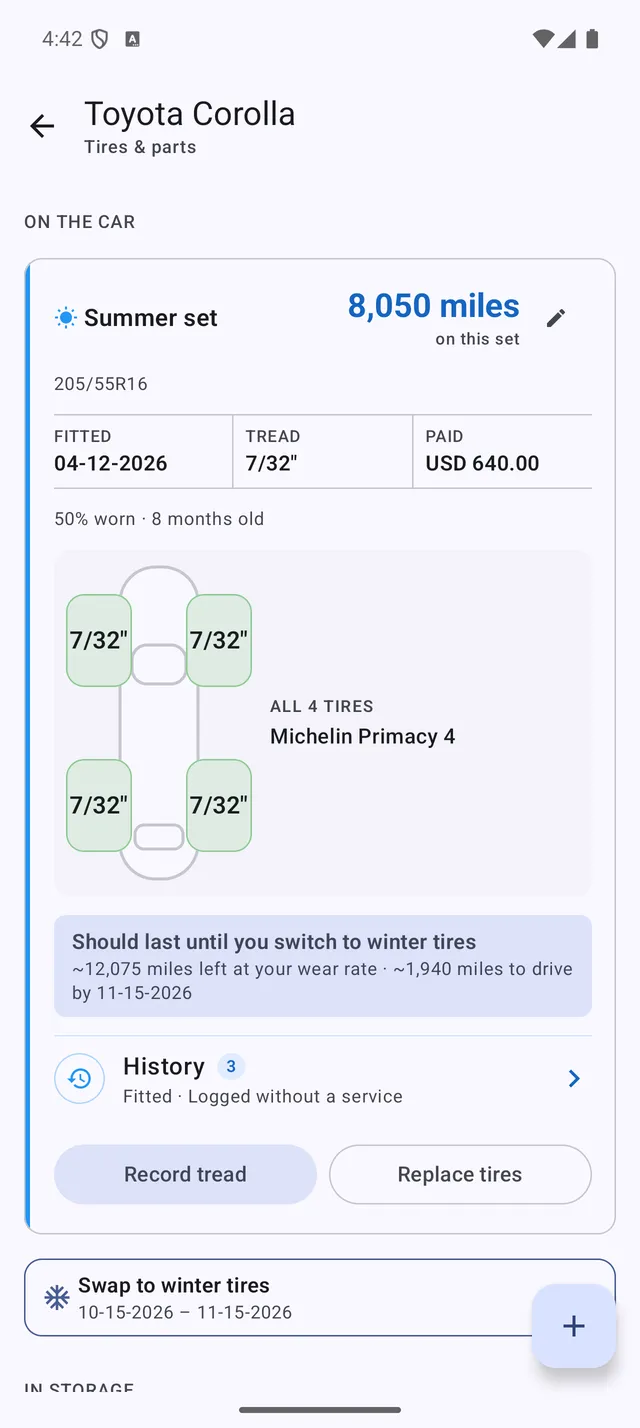 The tire set on the car: tread per wheel, whether it will last until the next swap, and when that swap is due
Opening the garage
- Menu > Tires & parts — every car’s tires and parts in one list.
- Vehicles > ⋮ > Tires & parts on a car’s card — that car’s garage.
The menu entry appears once you have added your first tire set or part.
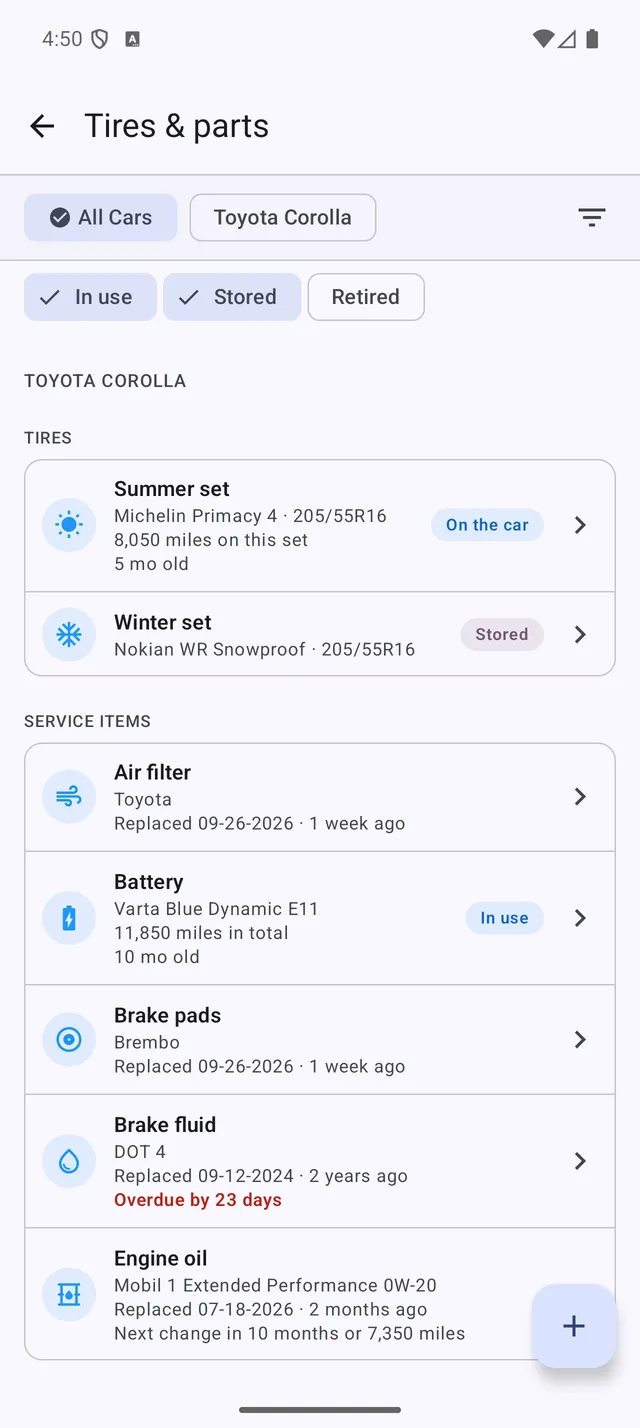 All cars in one list: tires, service items and equipment, each with its status
The garage groups everything by what it is:
| Section | What’s in it | Status you’ll see |
|---|---|---|
| Tires | Tire sets and wheel sets | On the car · Stored |
| Service items | Parts you change or replace: engine oil, filters, spark plugs, wipers, fluids, brake pads, the battery, alternator and starter | Replaced 09-26-2026 · Due in 22 days |
| Equipment | Your own parts that you fit and keep: a roof box, a bike rack, a dash cam… | On the car · Stored |
In the all-cars list, use the In use / Stored / Retired filters to show or hide parts. Retired parts keep their history.
Adding tires or a part
Tap +. The Add tires or a part sheet offers:
- Tire set — summer, winter or all-season tires.
- Something else… — a part that isn’t on the list (see Your own parts).
- Your custom parts — the parts you created before, ready to add again.
- Common parts — battery, wheel set, alternator, starter motor, brake pads.
- Fluids & filters — engine oil, oil, air and cabin filters, spark plugs, wiper blades, brake fluid, coolant.
A tire set
The quick form only needs the season and whether the set is on the car now. Size, brand and What you paid are optional; tap More details for the model, the DOT date code, the depth when new and Replace at — the depth at which you want to replace them.
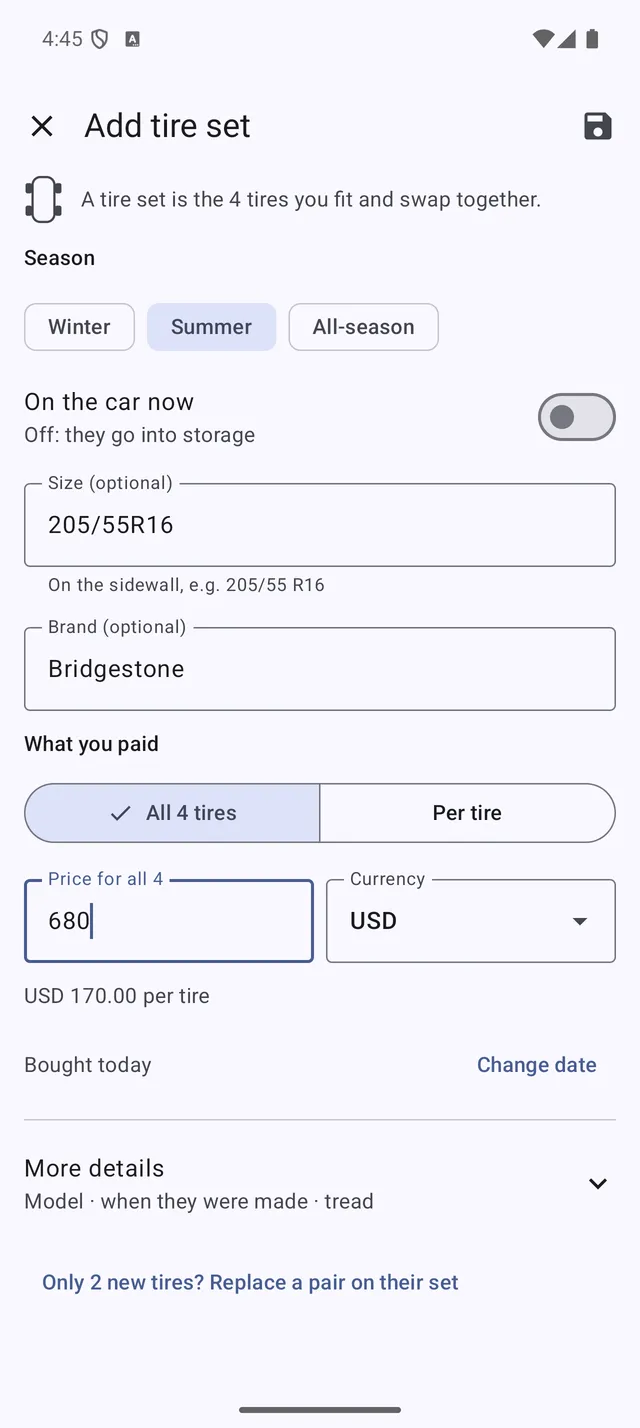 The quick tire form: season first, the rest when you want it
With PRO, a car holds up to 2 tire sets. When you add a third, My Cars asks Which set are the new tires replacing?: the new tires take its place, and the old set is retired — with its history — only when you save. PRO+ has no limit.
Seasonal swaps
If you swap between summer and winter tires, My Cars shows when your next swap is due on your dashboard and in the garage — for example Swap to winter tires · 10-14-2026 – 11-07-2026 — and notifies you when the window opens.
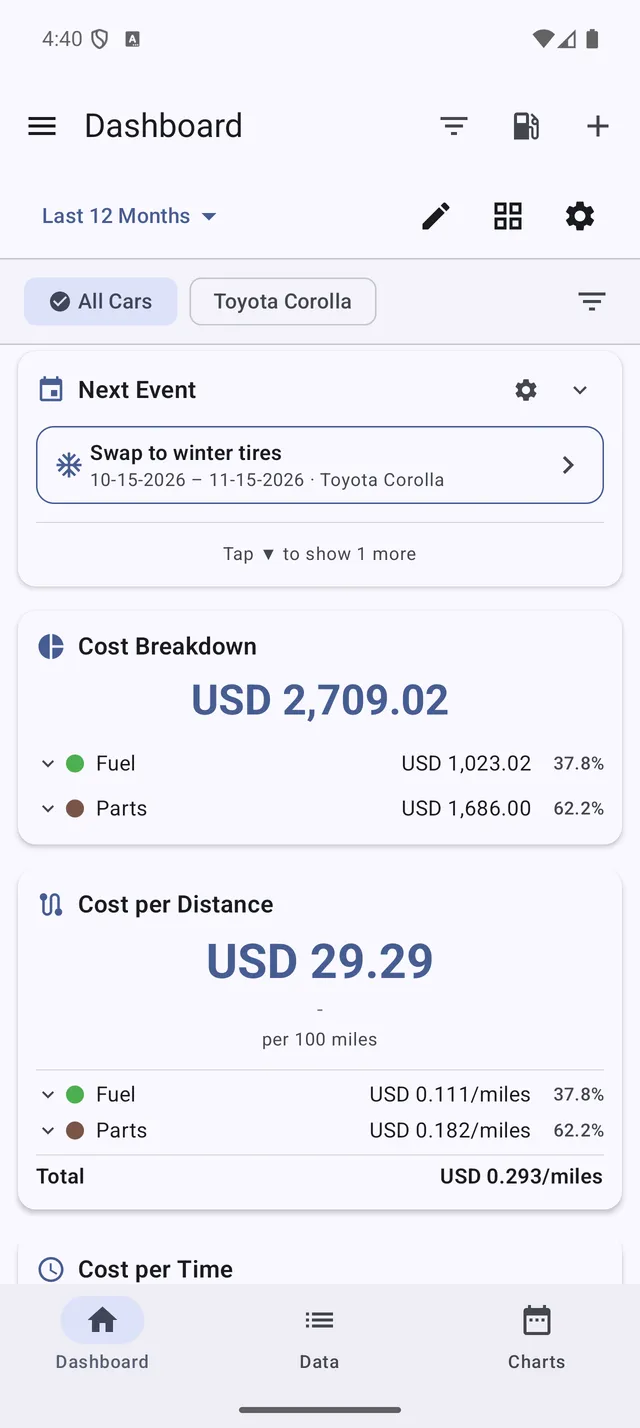 The next swap, on the dashboard’s Next Event card
The window comes from one of two places:
- Learned from your swaps — after your first swaps, My Cars knows the weeks you usually swap in.
- Your own dates — set them in Settings > Notifications > Seasonal tire swaps: To winter tires and To summer tires, each with a From and Until day. Your dates apply to all your cars and replace the learned window; the reminder then says set in Settings. Tap Clear to go back to learning from your swaps.
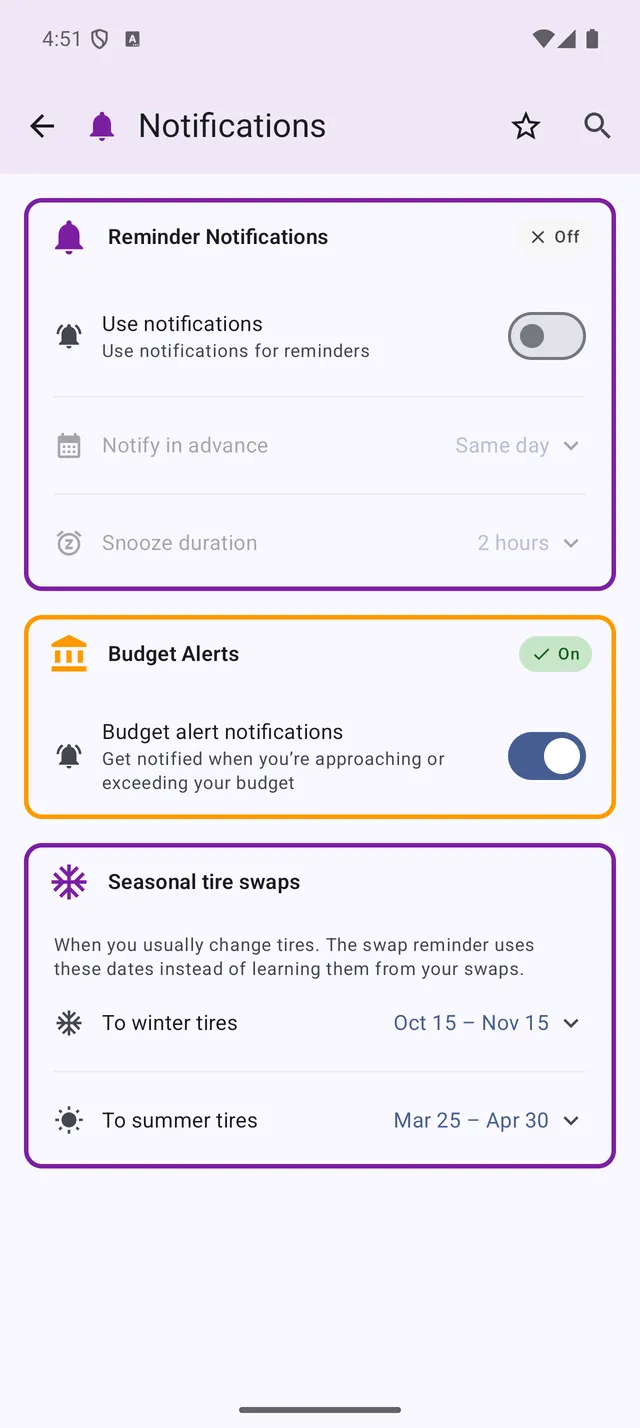 Settings > Notifications > Seasonal tire swaps
To record a swap, tap the swap line or Swap on a stored set:
- Check the date and current mileage (pre-filled from your refuels).
- Optionally enter the tread of the set coming off — one reading for All 4 tires, or Each tire separately.
- Tap Swap — the set goes on the car and the other one moves to storage.
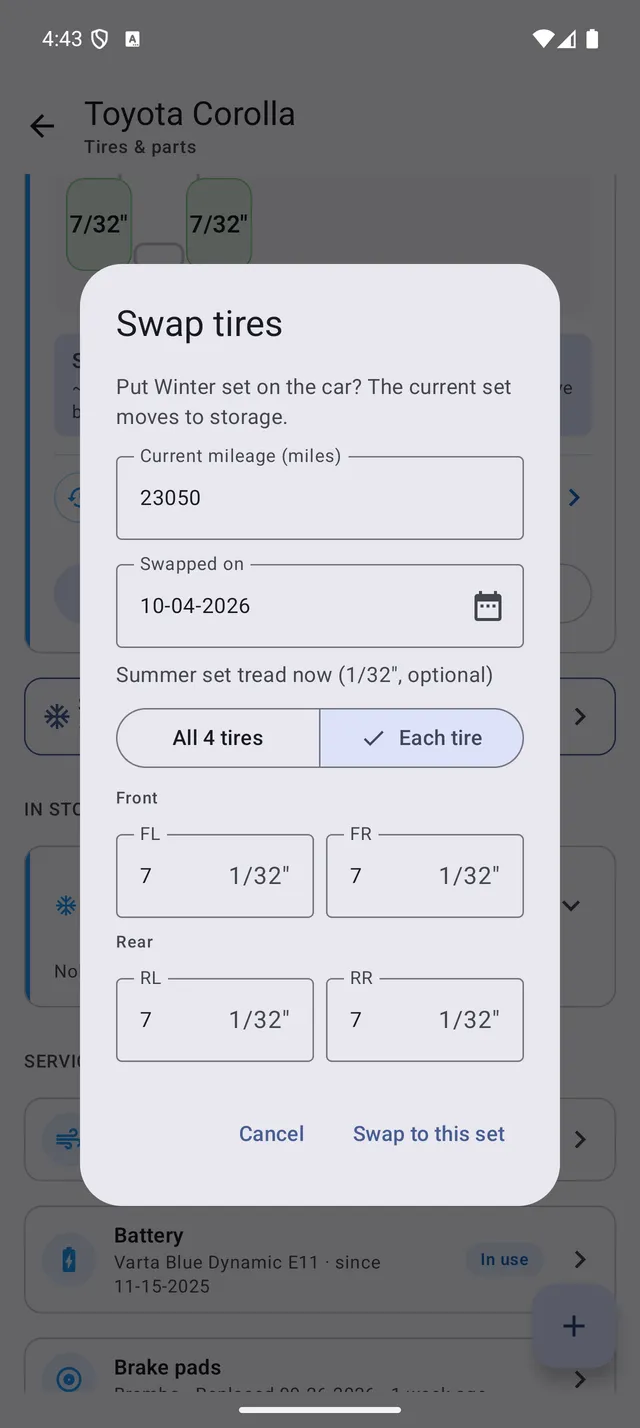 The swap, with the tread of the set coming off entered per tire
A swap can’t be dated before the set was last fitted or taken off — the mileage on each set would run backwards. The dialog tells you which event it clashes with; correct the older one in the set’s History if it was wrong.
In Reminders, the swap card has three buttons:
- Record swap — opens the swap.
- Not this season — skips this season’s swap.
- Turn off — stops swap reminders for that car only, after you confirm. You can turn them back on only right after, with Undo on the message at the bottom.
Tread depth and wear
Tap Record tread (or a wheel on the car diagram) and enter the depth of each wheel. Depth is shown in millimetres or 32nds of an inch, following your unit settings.
- Each wheel is coloured from good to at the limit, so uneven wear stands out.
- After two readings, My Cars works out your wear rate and how far the tires can still go.
- The set on the car tells you whether it should last until you switch to your other set — or may not last — for example ~1,717 miles left at your wear rate · ~900 miles to drive by 10-14-2026. With no swap coming, it shows roughly how many months are left at your pace.
- A stored set that may not get through its next season is flagged may not last the season — before you fit it.
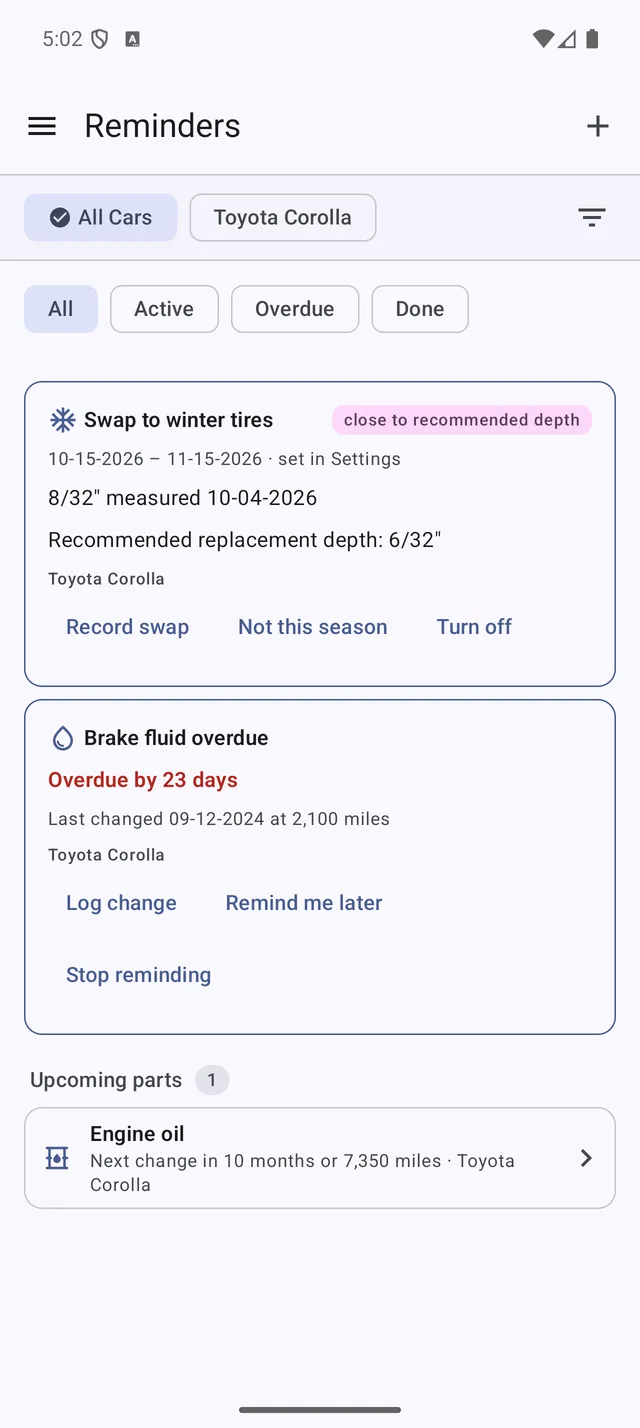 The swap reminder: the tread of the set you’ll fit, and the recommended replacement depth
Replacing tires
When you buy new tires for a set, tap Replace tires:
- All 4 tires — the old tires are retired with their history, and the new ones go on the car (or into storage) with their price.
- 2 tires (PRO+) — replace just the pair that wore out, e.g. after a puncture. Choose Which tires wore out?. If it was the front pair, My Cars asks Where do the new tires go? and recommends On the rear (recommended): the rear tires move to the front. Each pair keeps its own brand, fitting date and distance.
When you add a tire set, the link Only 2 new tires? Replace a pair on their set (PRO+) takes you to the same form.
Parts you replace: oil, filters, brakes, battery…
Engine oil, filters, spark plugs, wiper blades, fluids, brake pads, the battery, the alternator and the starter are service items: each change is a new entry, and the part counts as on the car until you log the next one.
To log a change, tap the part and Log a replacement (or Log change on a reminder). The form shows when it was replaced and at what mileage — Replaced 09-15-2026 at 22,000 miles · Change. For a change made earlier, tap Change and enter that day’s mileage, or leave it empty if you don’t know it.
When the new part replaces one that’s still on the car, My Cars asks What about the one it replaces? — Retired — recycled or sold, or Kept as a spare.
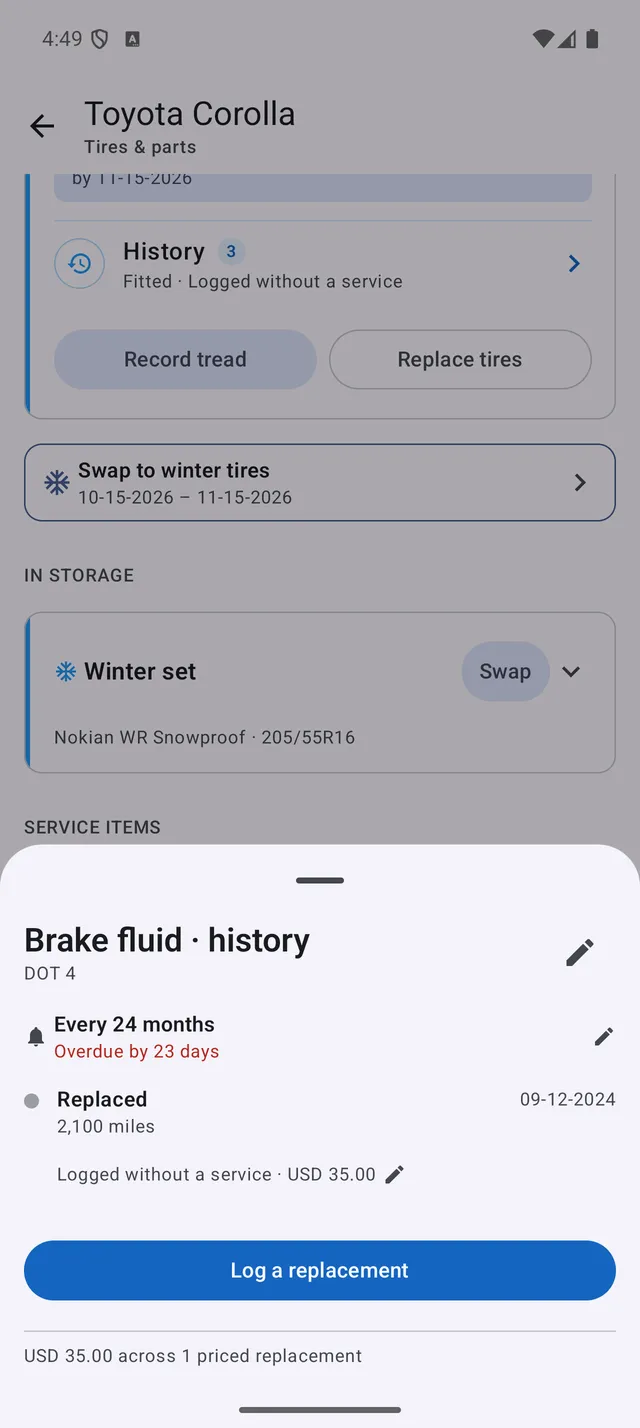 A part’s history: its reminder, every change and what it cost
To take a part off without replacing it — a battery you remove for the winter, for example — open it and tap Take off and store; Put on the car fits it again.
Engine oil
An oil change records more than the date:
- Grade — tap a common one (0W-20, 5W-30…) or type your own.
- Spec / approval — the manufacturer approval on the bottle, e.g. VW 504.00.
- Quantity — in litres, or in quarts if you use US gallons.
The next oil change starts filled in from your last one — brand, grade, spec and quantity — with a note to check it still matches.
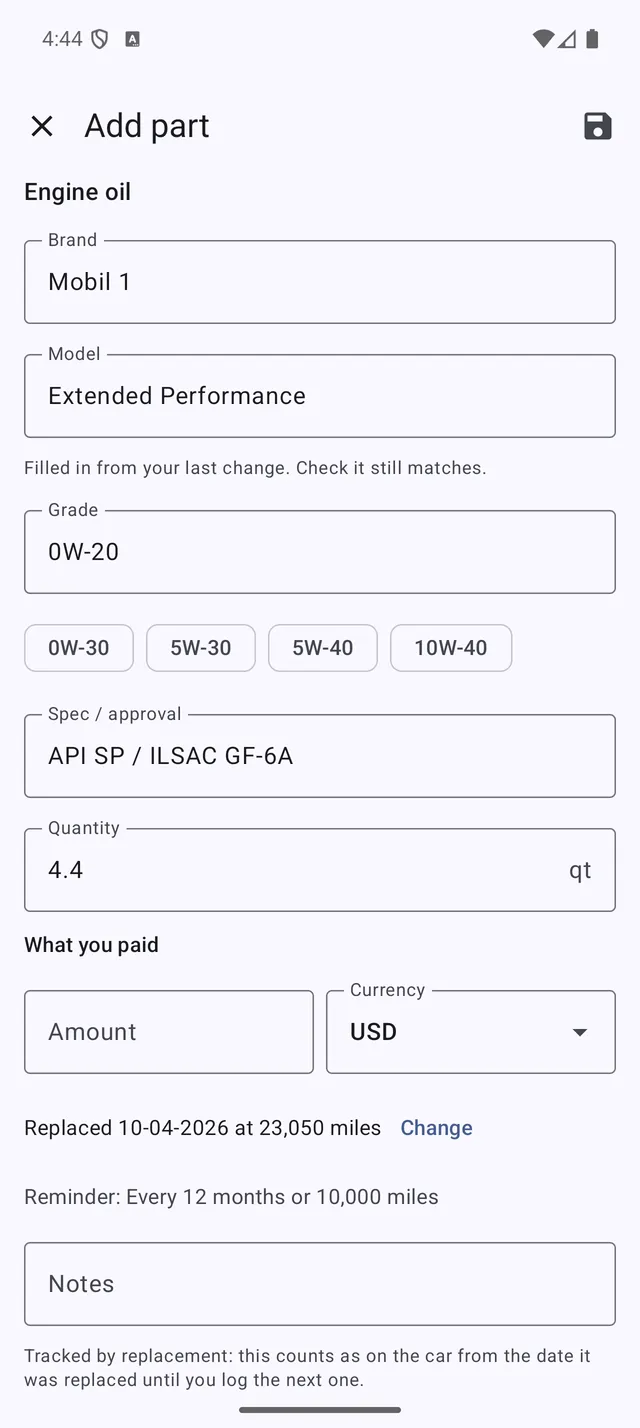 Grade, approval and quantity, filled in from the last change
Topping up between changes
Bought a 5-litre bottle and keeping the rest for later? Open Engine oil and tap Add oil whenever you top up: the date, the mileage and how much you added. A price is optional — leave it empty for oil from a bottle you already paid for; a priced top-up counts in your costs.
Once you’ve driven 1,000 km (about 620 miles) since the last change, the oil block shows your oil use — for example Oil use: 0.3 L per 1,000 km — along with how many top-ups you made since the change. A rising figure is worth mentioning at your next service.
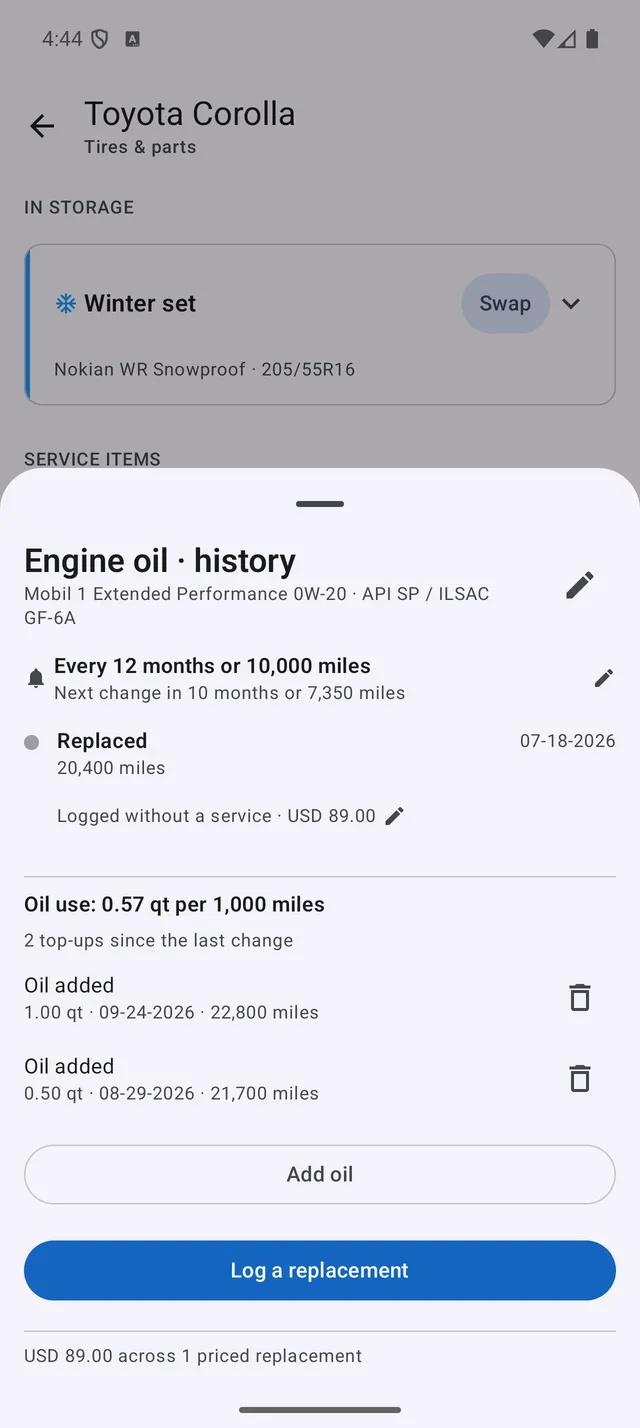 Oil use since the last change, and every top-up
Your own parts
Tap + > Something else… for anything that isn’t listed — a dash cam, a timing belt, snow chains, AdBlue.
- Give it a name (your previous custom parts are offered as suggestions).
- Choose How do you use it?
- I fit it and keep it — like a roof box or a dash cam: it goes in Equipment, on the car or in storage.
- I replace it when it wears out — like a timing belt or a filter: it goes in Service items; each one lasts until the next.
- For a part you keep, say whether it’s on the car now and, if it was fitted earlier, tap Change to enter when and at what mileage.
The choice can’t be changed after saving, because the part’s history is built on it. To change it, add the part again as a new part.
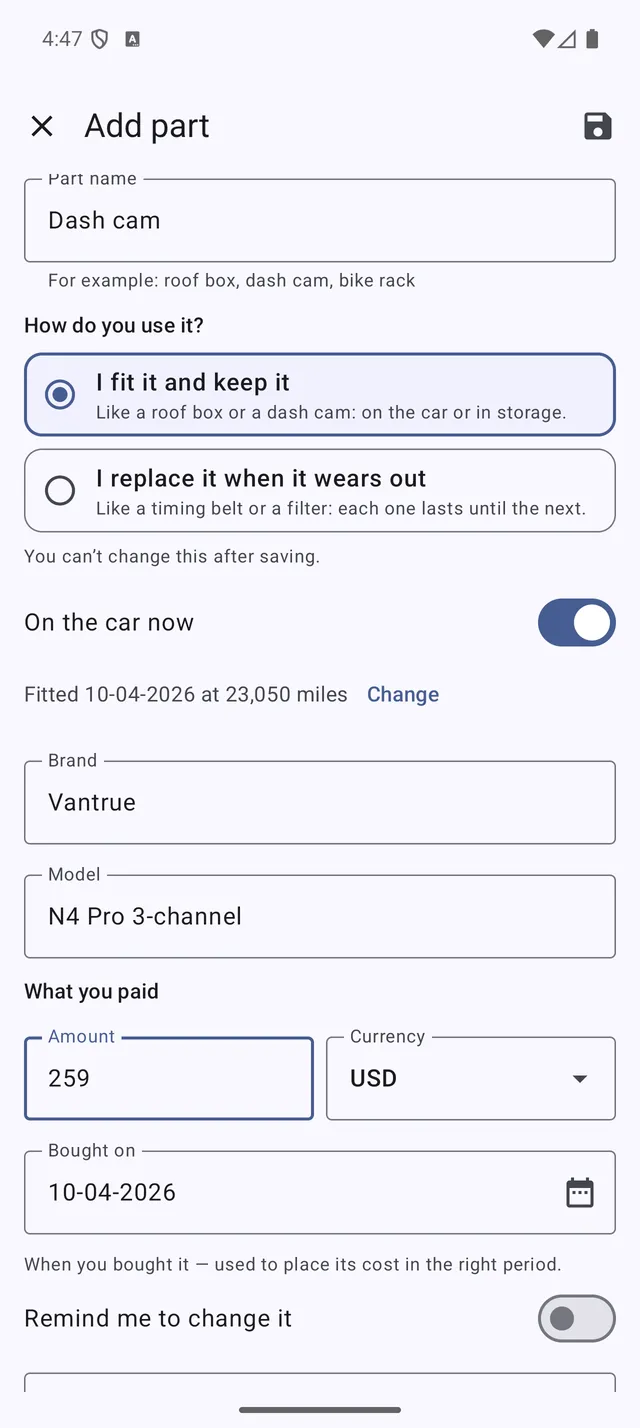 “How do you use it?” — a part you keep, or one you replace
Putting equipment on and taking it off
Each piece of equipment in a car’s garage has a switch: flip it when the roof box goes on for the holidays and again when it comes off. A message confirms the move with Undo and Change date, in case it happened on another day.
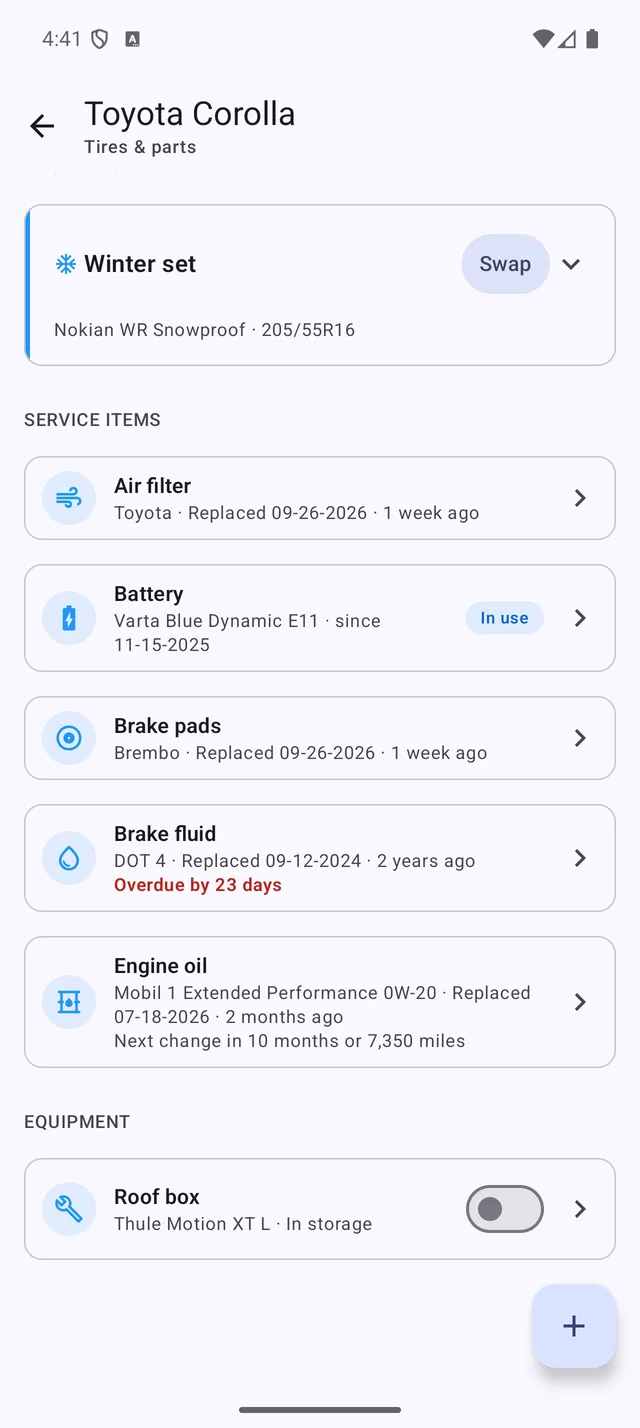 Flip the switch when it goes on the car or comes off
When you sell or get rid of equipment or a tire set, open it, tap the pencil, fill in Sold or disposed of and tap Mark as sold / disposed. It moves to Retired with its history, and the sale price is subtracted from your running costs. Deleting it instead also deletes its history.
Reminders for the next change
Turn on Remind me to change it on any part and set Every … months or Every … miles — whichever comes first. Most parts come with a suggested interval (for example engine oil every 12 months or 10,000 miles — 15,000 km).
Due and overdue parts appear:
- on the dashboard’s Next Event card,
- in Reminders,
- as a notification,
and the reminder restarts as soon as you log the next change.
The part’s line reads Next change in …, then Due in … as the date or distance gets close, and Overdue by … once it’s passed. In Reminders, a due part has Log change, Remind me later and Stop reminding.
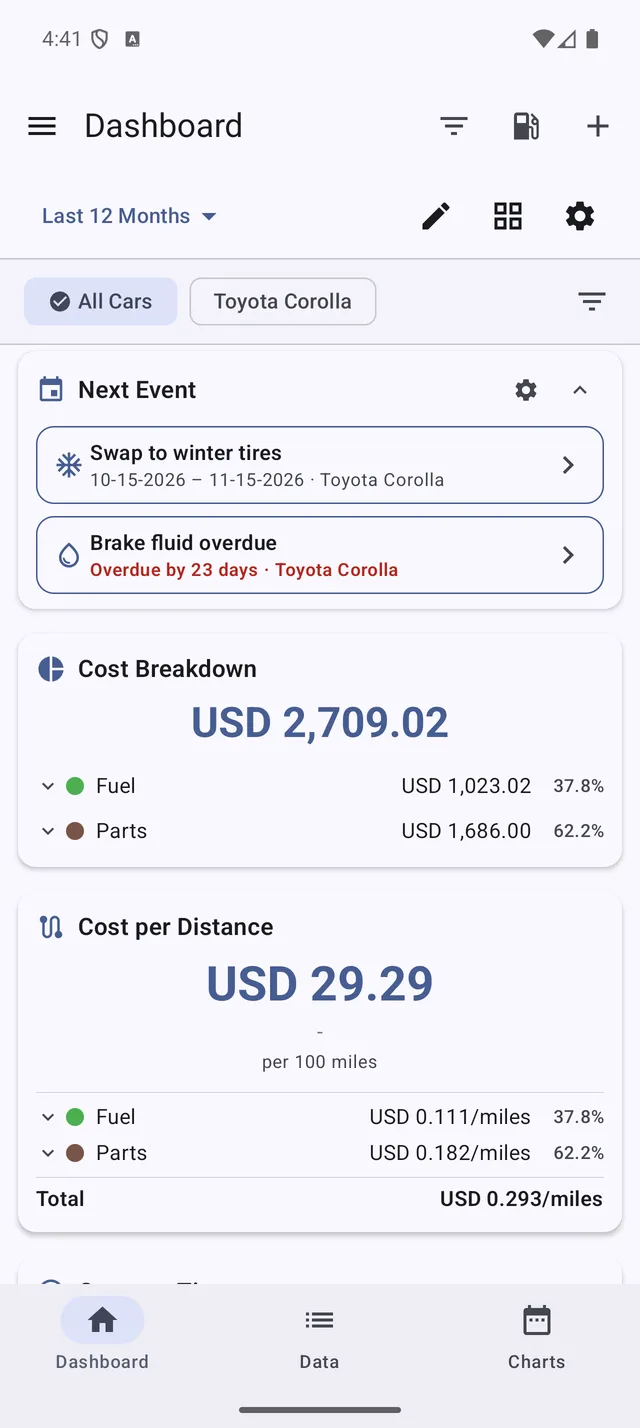 “Brake fluid overdue” next to the coming tire swap, on the dashboard’s Next Event card
If you already had a classic reminder for the same job — an “Oil change” reminder for your engine oil, for example — My Cars offers to turn it off so you aren’t reminded twice.
Parts in a service
When you record a service, you can attach the parts it changed — the oil and the oil filter of an oil change, for example — each with its price and, under Brand / model, what was fitted. The service keeps its full total; the parts’ history links back to it.
What it costs
- The Cost per Distance and Cost per Time widgets show a Parts category: money spent on tires and parts outside services — including priced oil top-ups — minus anything you sold.
- Each part shows what you paid for it.
Fixing a past entry
Open a part’s History:
- Correct mileage fixes the reading of a fitting, a swap or a change. The other side of a swap follows automatically.
- Correct price fixes what you paid for a pair.
- Edit part changes the brand, model, notes, price or dates.
Backups
Your tires, parts and oil top-ups are included in local backups and in the backup files saved to Dropbox, Google Drive or OneDrive, and any change in the garage triggers your next automatic backup. In Smart Merge (PRO), the Tire sets & parts switch lets you choose whether to bring them in, and each car shows how many it has.
If your subscription ends
Nothing is deleted. Your tires and parts stay visible, marked View only; adding or changing them asks you to renew.