Getting Started
First-time setup, adding your first vehicle, and configuring units
How do I add my first vehicle?
When you first open My Cars, the setup wizard guides you through:
- Welcome screen - Tap “Get started”
- Units setup - Select your preferred currency, distance unit (km/miles), and fuel consumption format
- Add Your First Car - Enter a name for your vehicle (you can add more details later)
- Done! - Start tracking your fuel and expenses
You can skip the car setup and add vehicles later from the Dashboard.
How do I change my units and currency?
- Open the navigation menu (hamburger icon)
- Go to Settings
- Select Units to change:
- Currency - For displaying costs
- Distance - Kilometers or miles
- Fuel Consumption - L/100km, MPG, km/L, etc.
- Fuel Quantity - Liters or gallons
- Fuel Price - Per liter or per gallon
Changes apply immediately to all your data.
How do I add more vehicles?
- Open the navigation menu
- Tap Vehicles
- Tap the + button
- Enter the vehicle name and details
- Tap Save
You can manage multiple vehicles and switch between them from the Dashboard or Vehicles screen.
What’s the difference between Purchase Price and Initial Cost?
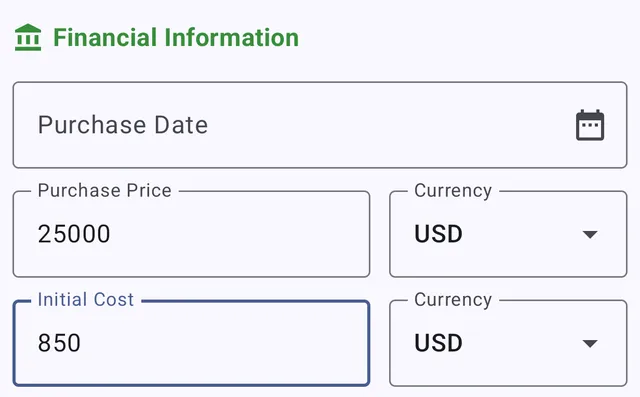
When you add or edit a vehicle, the Financial Information section has two separate one-time cost fields:
- Purchase Price — what you paid for the vehicle itself.
- Initial Cost — other up-front costs to get it on the road: registration, taxes, license plates, dealer or delivery fees, and the like.
They’re kept separate so you can see each on its own, but the app adds them together for cost analysis. Your vehicle’s depreciation / total cost of ownership is worked out as:
Purchase Price + Initial Cost − Sale Price
Both also appear as their own slices in the Cost Breakdown, and Initial Cost is spread across your distance in cost-per-distance stats. You can leave either field blank — the app simply skips what you don’t enter.
The same section also holds the Purchase Date (used to work out how long you’ve owned the vehicle) and, when you sell, a Sale Date and Sell Price.
What should I enter for my first refuel?
For your first refuel, enter:
- Date - When you filled up
- Trip distance - Distance driven since your last fill-up (default mode), or switch to odometer mode in preferences
- Quantity - How much fuel you added
- Fuel price - Price per liter/gallon (total cost is calculated automatically)
Alternatively, you can enter the Total cost instead of fuel price, and the app will calculate the unit price for you.
Fuel efficiency will be calculated starting from your second refuel.
How do I restore data from my old phone?
If you have a backup from your previous device:
- On the Welcome screen, look for “Restore Data” option
- Choose your restore source:
- Local file - Select a backup file from your device
- Cloud - Sign in to Dropbox, Google Drive, or OneDrive
- Select your backup file
- Wait for the restore to complete
All your vehicles, refuels, services, and settings will be restored.
Where can I find help and settings?
- Settings: Menu > Settings (gear icon)
- Help & FAQ: Menu > About & Help > Help & FAQ
- Getting Started Guide: Menu > About & Help > Getting Started Guide
- About: Menu > About & Help > About MyCars